dashboard
Create a campaign
activeGo to Retail Media → Campaigns and press New campaign, or press New campaign on an advertiser's page. Only Sponsored Products can be created today; the other types are dimmed, and hovering over one shows Coming soon.
Step 1 saves the campaign as a draft. To come back to a draft later, open it from the campaign list with Actions → Edit.
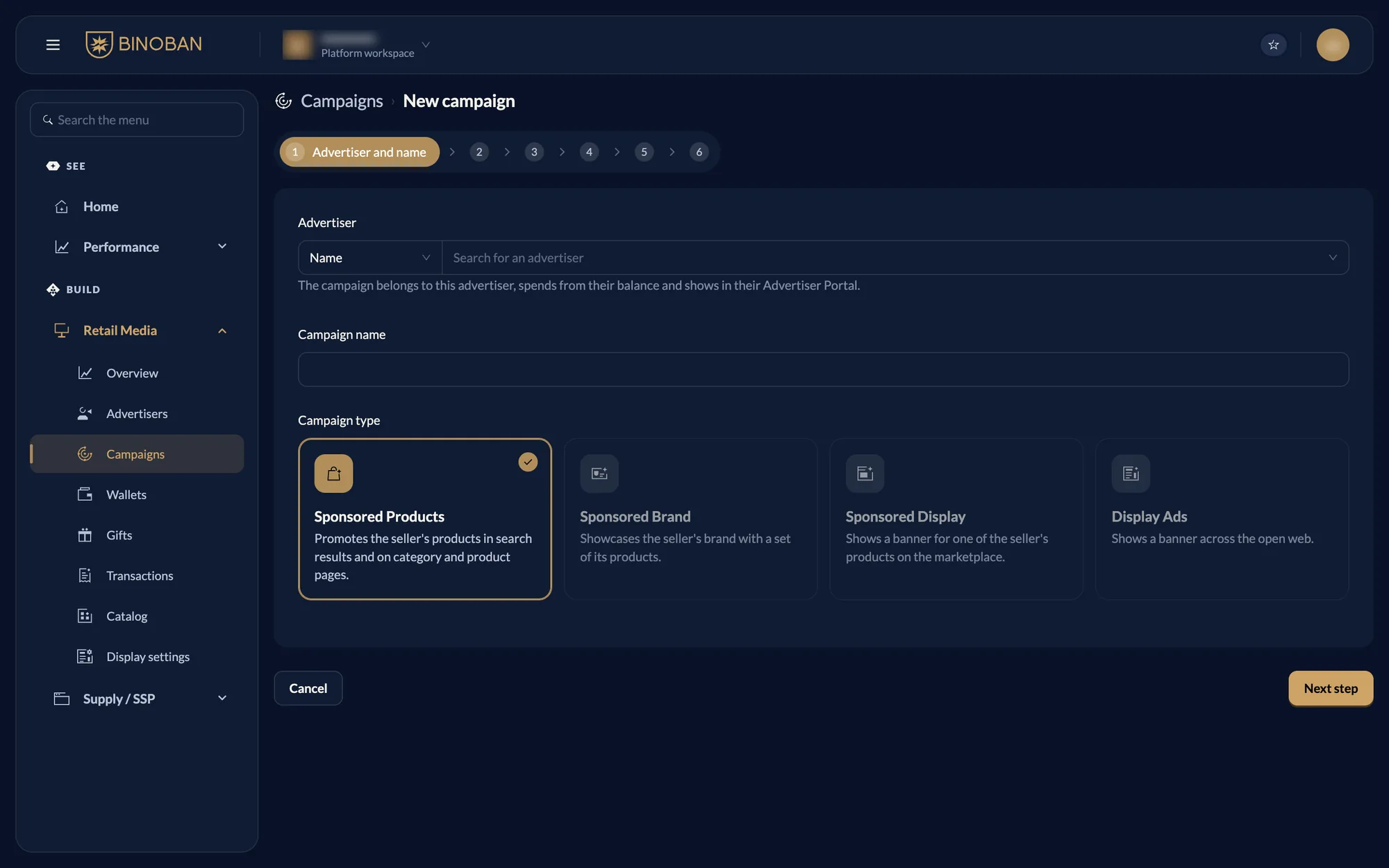
Step 1: Advertiser and name
- Search for the advertiser, type a campaign name and keep Sponsored Products selected.
- Press Next step, which saves the campaign as a draft.
Step 2: Products
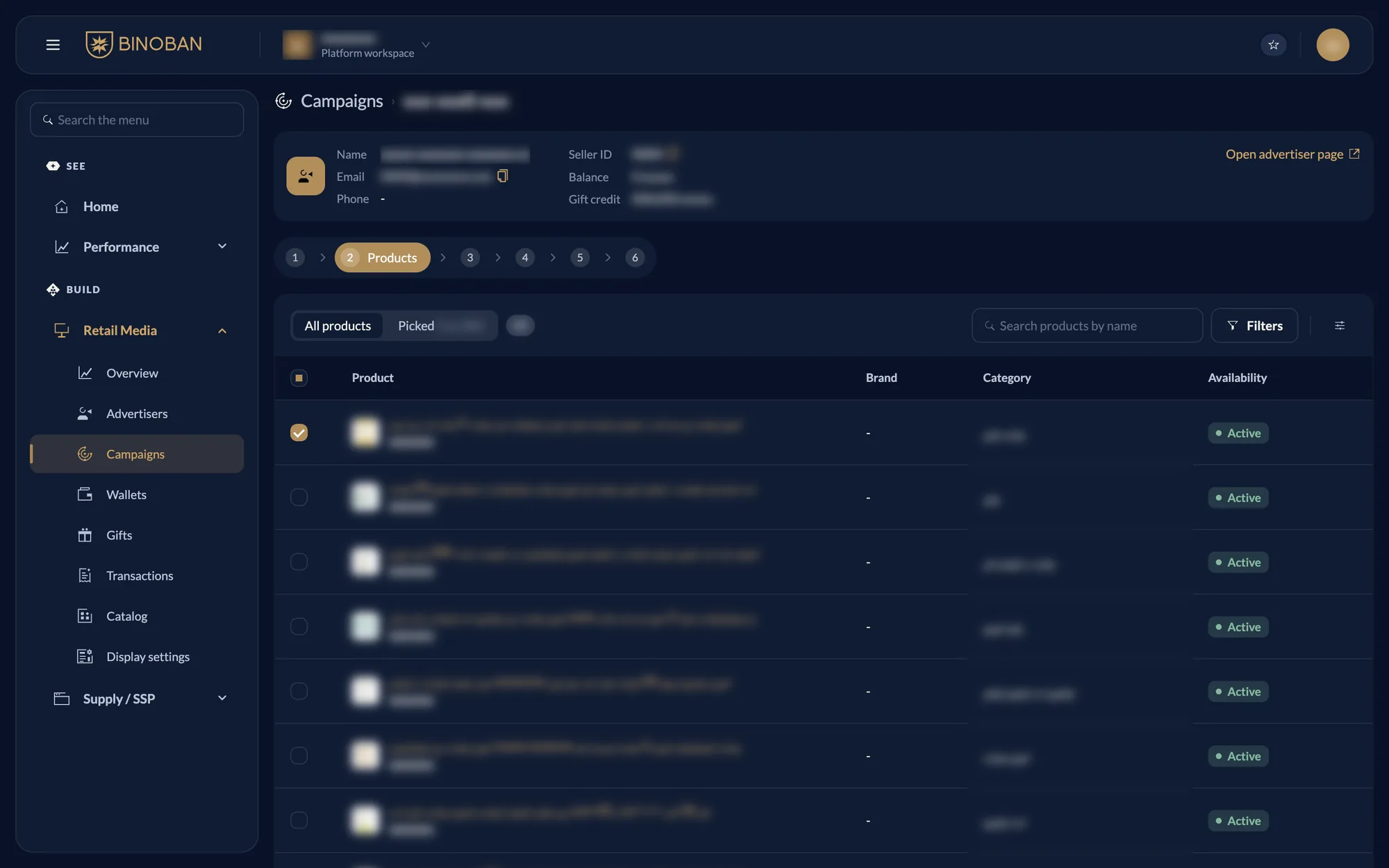
- Tick the seller's products to promote, up to the limit shown beside Picked.
- Use search and Filters to find them, and the Picked tab to see your choices.
Step 3: Placement
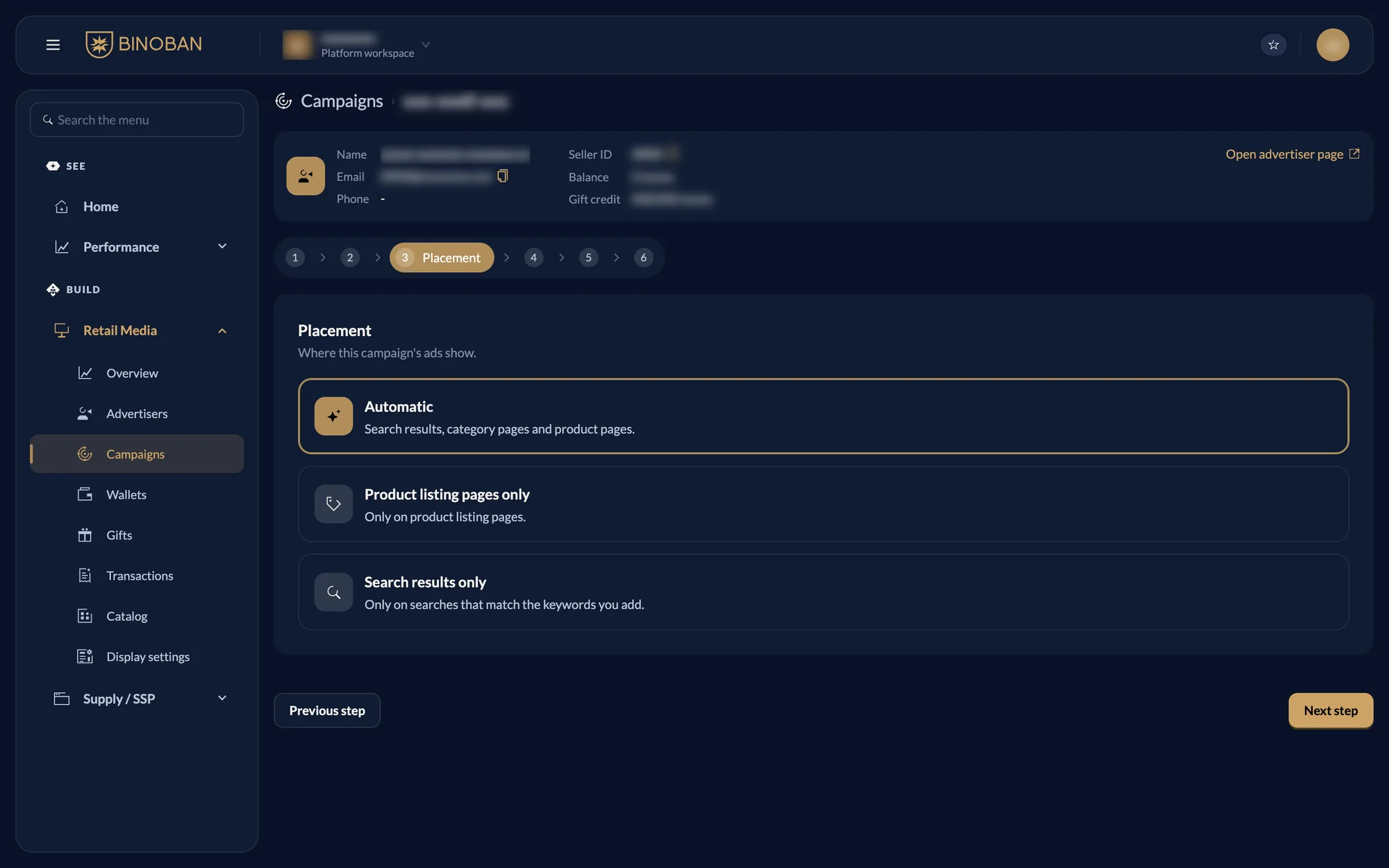
Choose where the ads show.
| Option | Where ads show |
|---|---|
| Automatic | Search results, category pages and product pages |
| Product listing pages only | Only on product listing pages |
| Search results only | Only on searches that match the keywords you add |
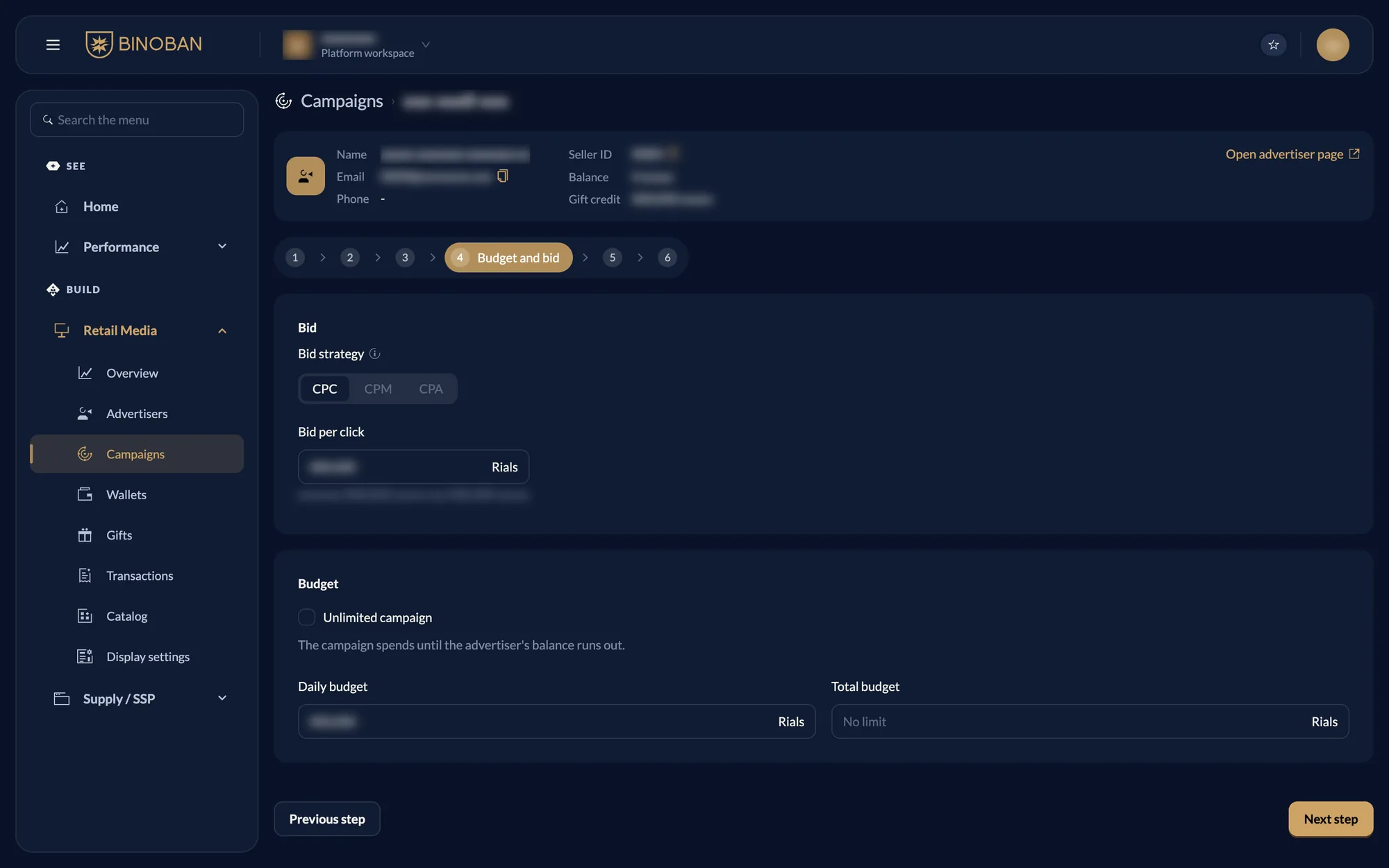
Step 4: Budget and bid
- Sponsored Products bids by CPC, so enter a bid per click inside the range shown.
- Set a daily budget, a total budget, or both.
- Tick Unlimited campaign to spend until the advertiser's balance runs out.
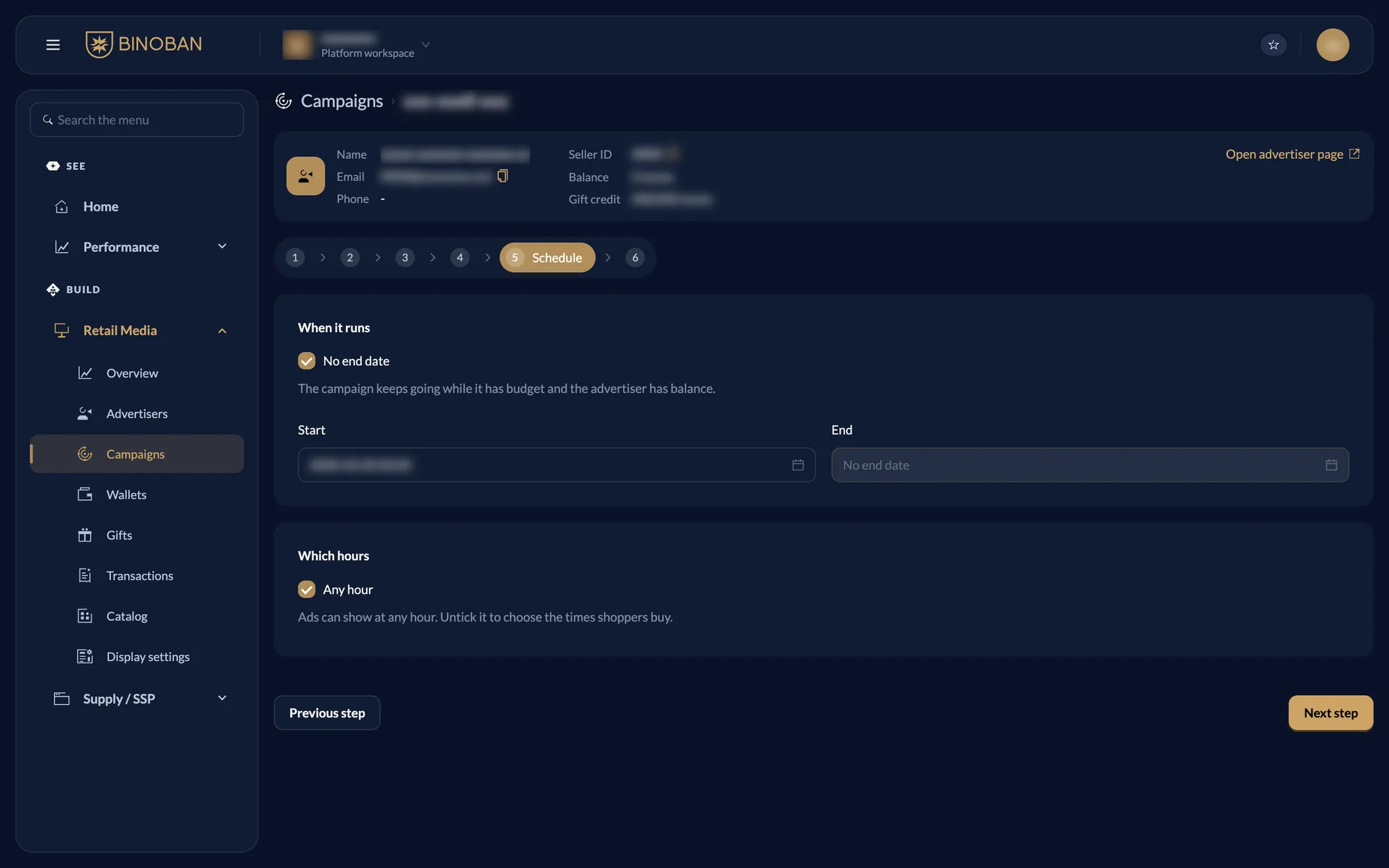
Step 5: Schedule
- Set the start.
- Leave No end date ticked to keep it running, or untick it to choose an end.
- Leave Any hour ticked, or untick it to choose the hours ads show.
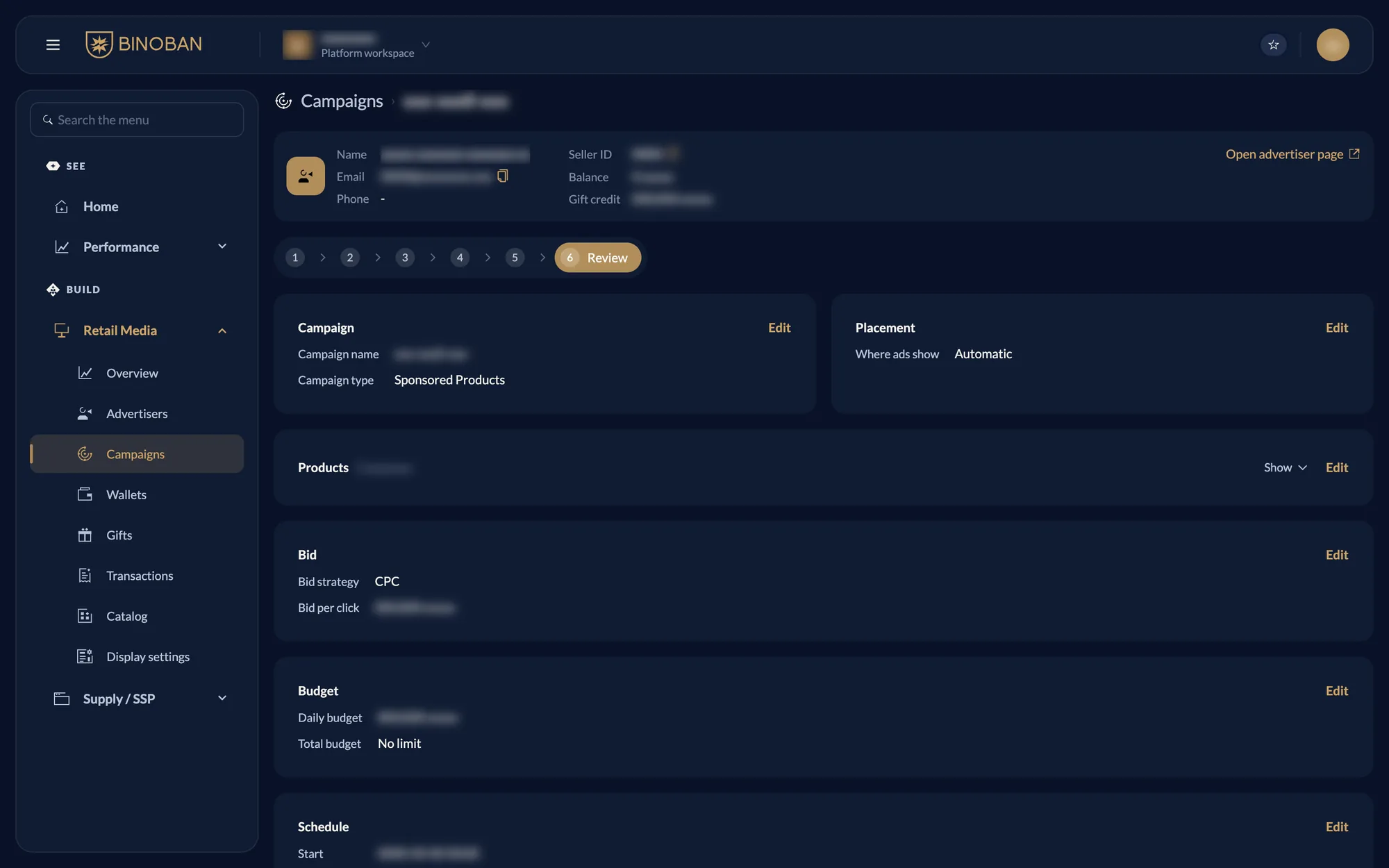
Step 6: Review
- Check each card, and press Edit on a card to go back to that step.
- Press Launch campaign, then Launch to confirm.
Once launched, it is no longer a draft, and you return to the campaign list. If auto-approve is off in Display settings, the campaign waits for approval before it runs.
If your role can't launch campaigns, the last button is Finish. The draft stays saved for someone who can launch it.