Retail Media pages
activeRetail Media is where you run sellers' ad campaigns and manage the money behind them. It has eight pages.
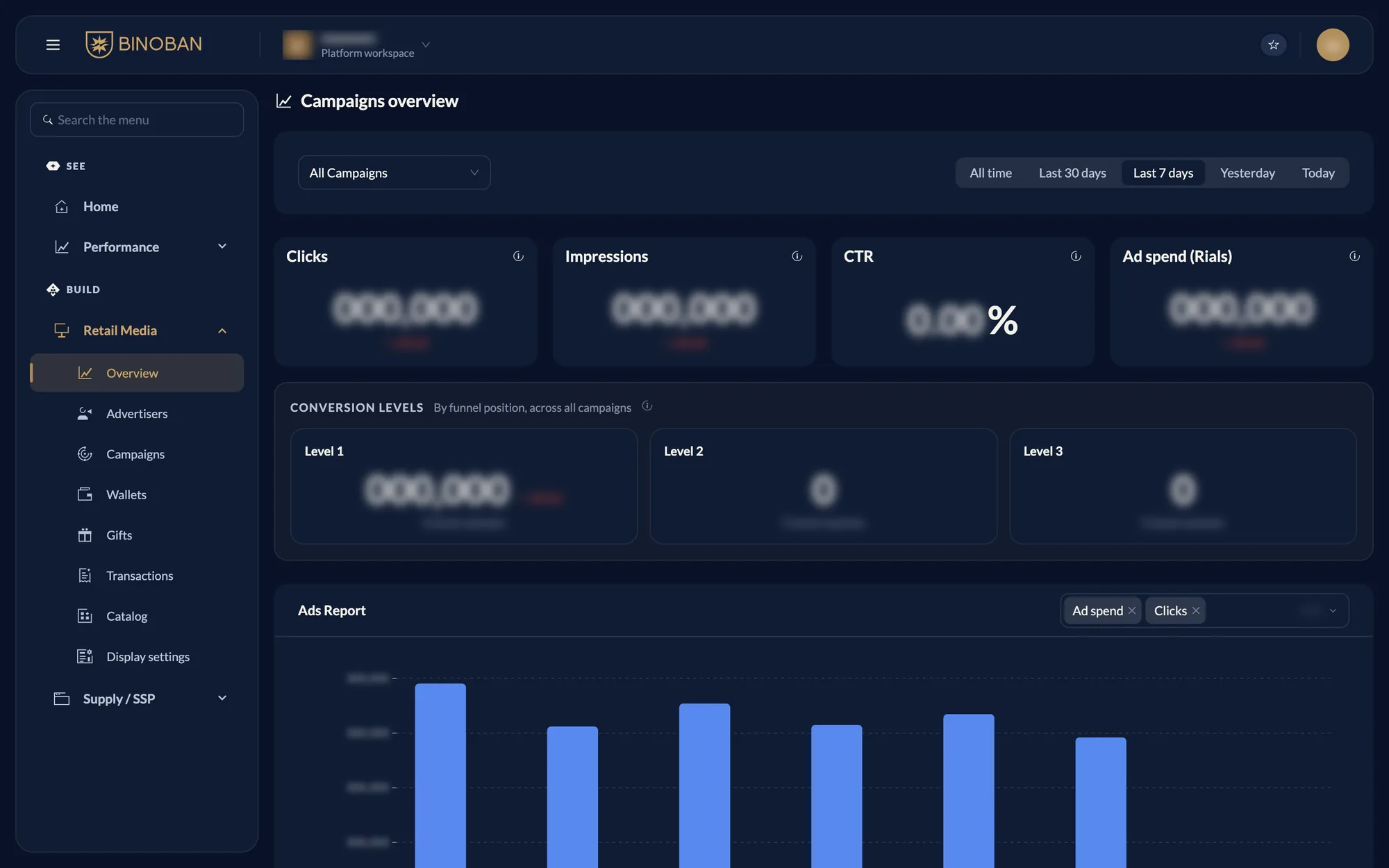
Overview
Ad performance for a period, for all campaigns or for one you pick.
- Filters: the campaign dropdown, then All time, Last 30 days, Last 7 days, Yesterday or Today.
- Cards: clicks, impressions, CTR and ad spend.
- Conversion levels: conversions and revenue at each funnel level.
- Ads Report: a chart where you choose the metrics, and a table with one row per day.
Advertisers
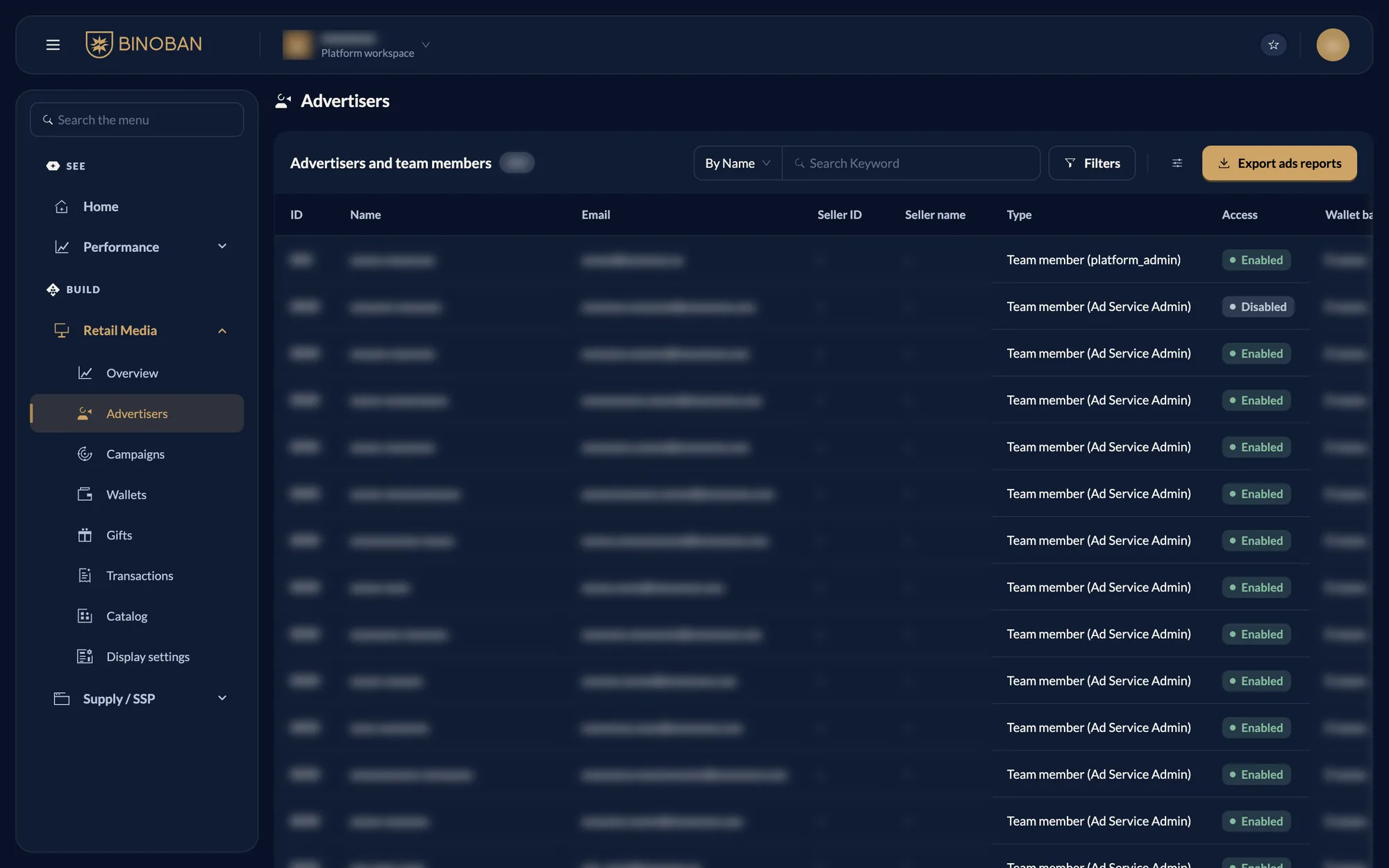
Everyone on the platform: sellers who can advertise, and team members.
- Type separates advertisers from team members. A team member can't own a sponsored campaign.
- Search and Filters find someone by name or other details.
- Export ads reports downloads a report across all sellers.
- Press a row to open that advertiser's page.
The advertiser page
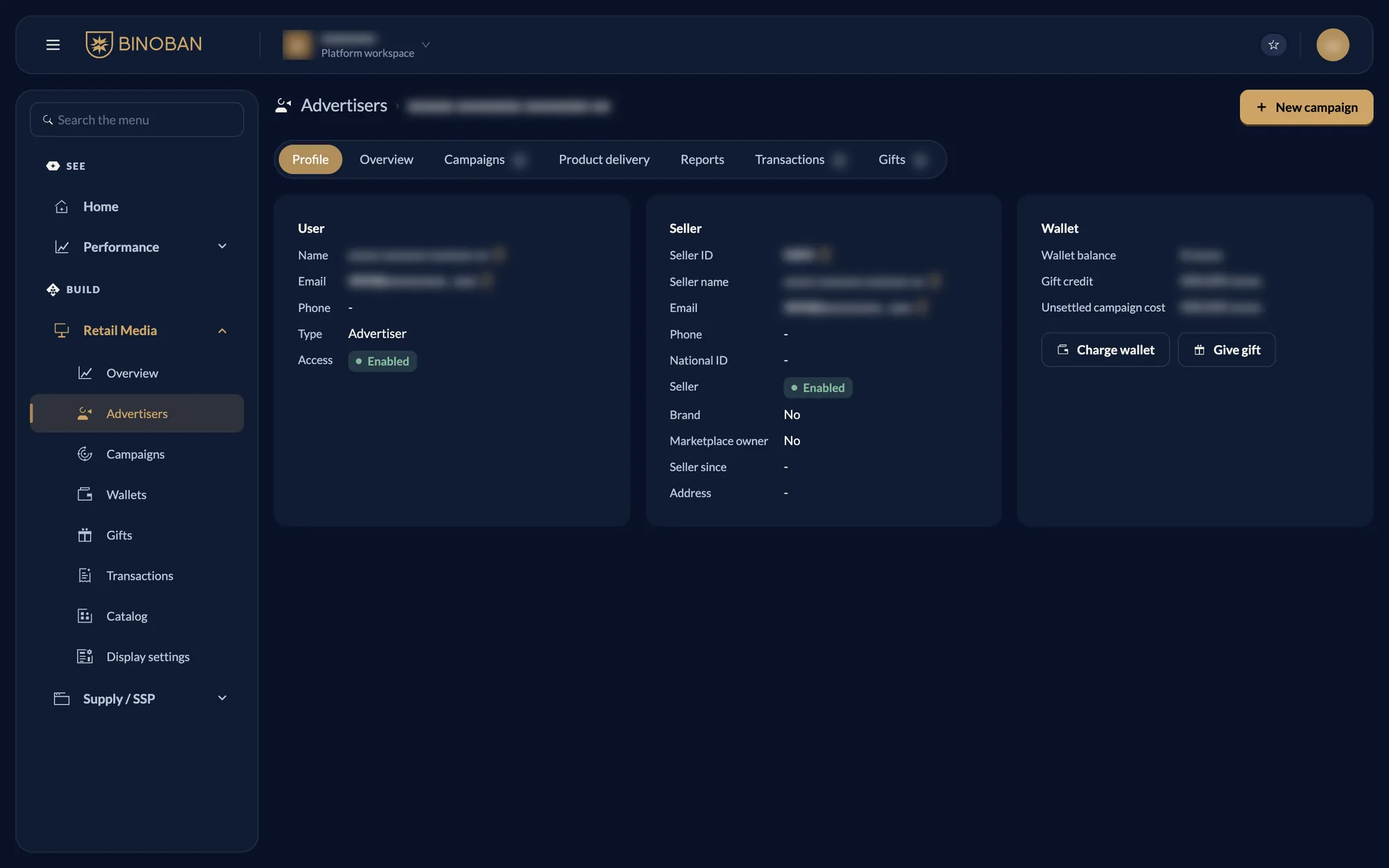
Press a row in Advertisers to open it. It opens on the Profile tab.
- Wallet card: wallet balance, gift credit and unsettled campaign cost, with Charge wallet and Give gift buttons.
- New campaign: starts a campaign for this advertiser.
The other tabs narrow the main pages down to this one advertiser.
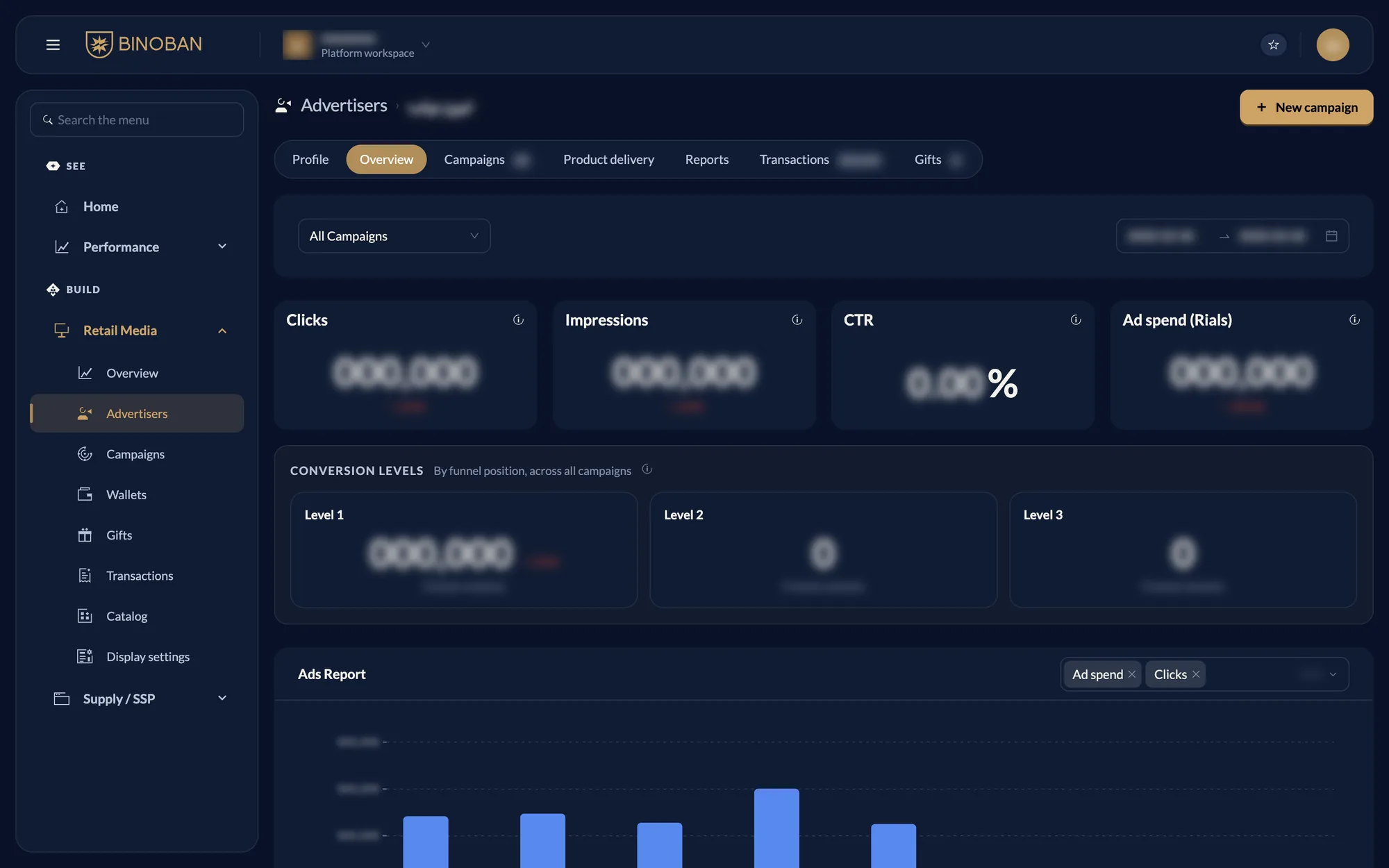
Overview tab
Shows this advertiser's performance, for all their campaigns or for one. Choose the campaign and date range at the top. The cards, conversion levels and Ads Report work as they do on the main Overview page.
Campaigns tab
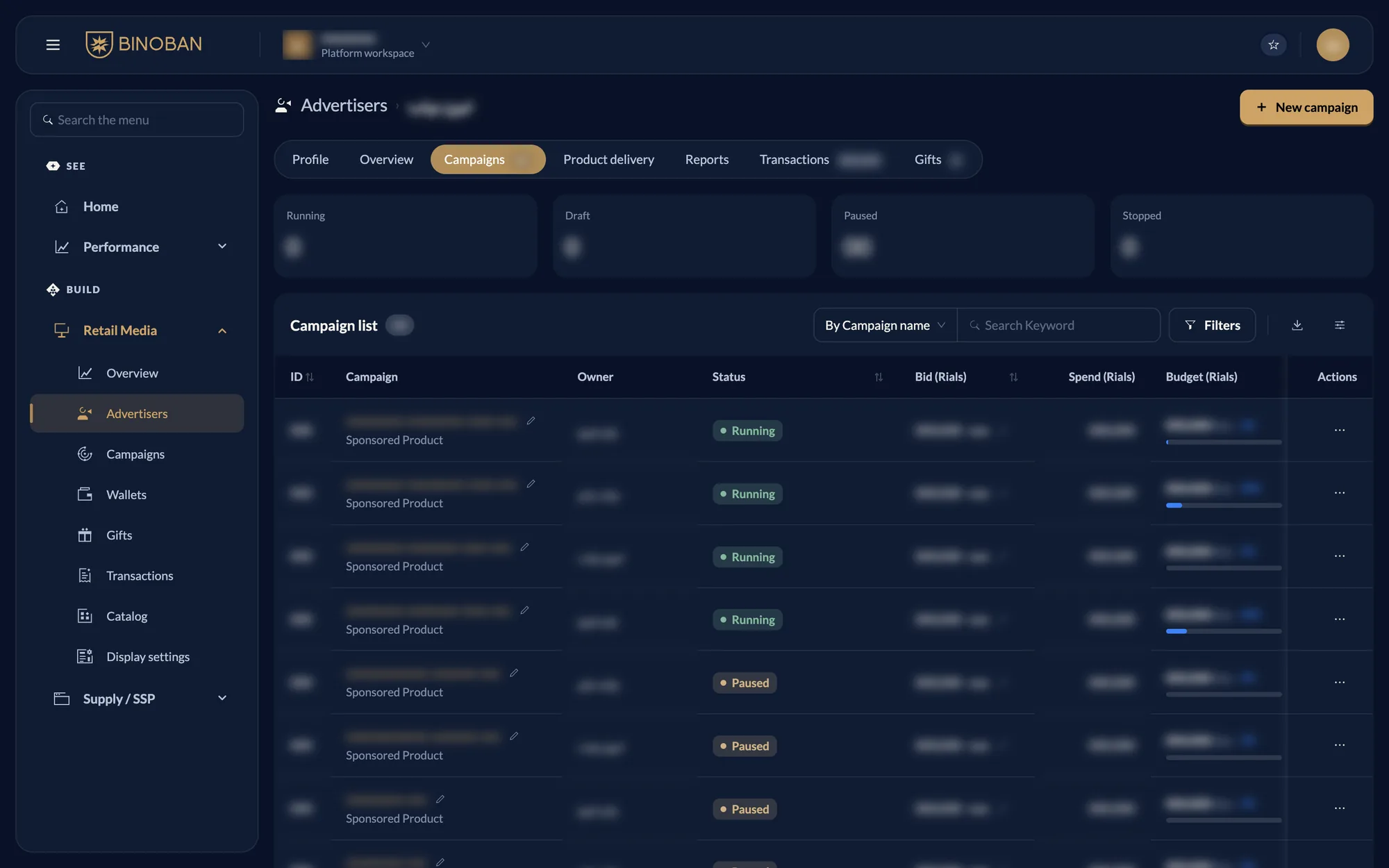
Lists only this advertiser's campaigns, with their own Running, Draft, Paused and Stopped counts. The pencils and Actions menu work as they do on the main Campaigns page.
Product delivery tab
Shows this advertiser's delivery by product. The Product delivery report under Performance shows the same data.
Reports tab
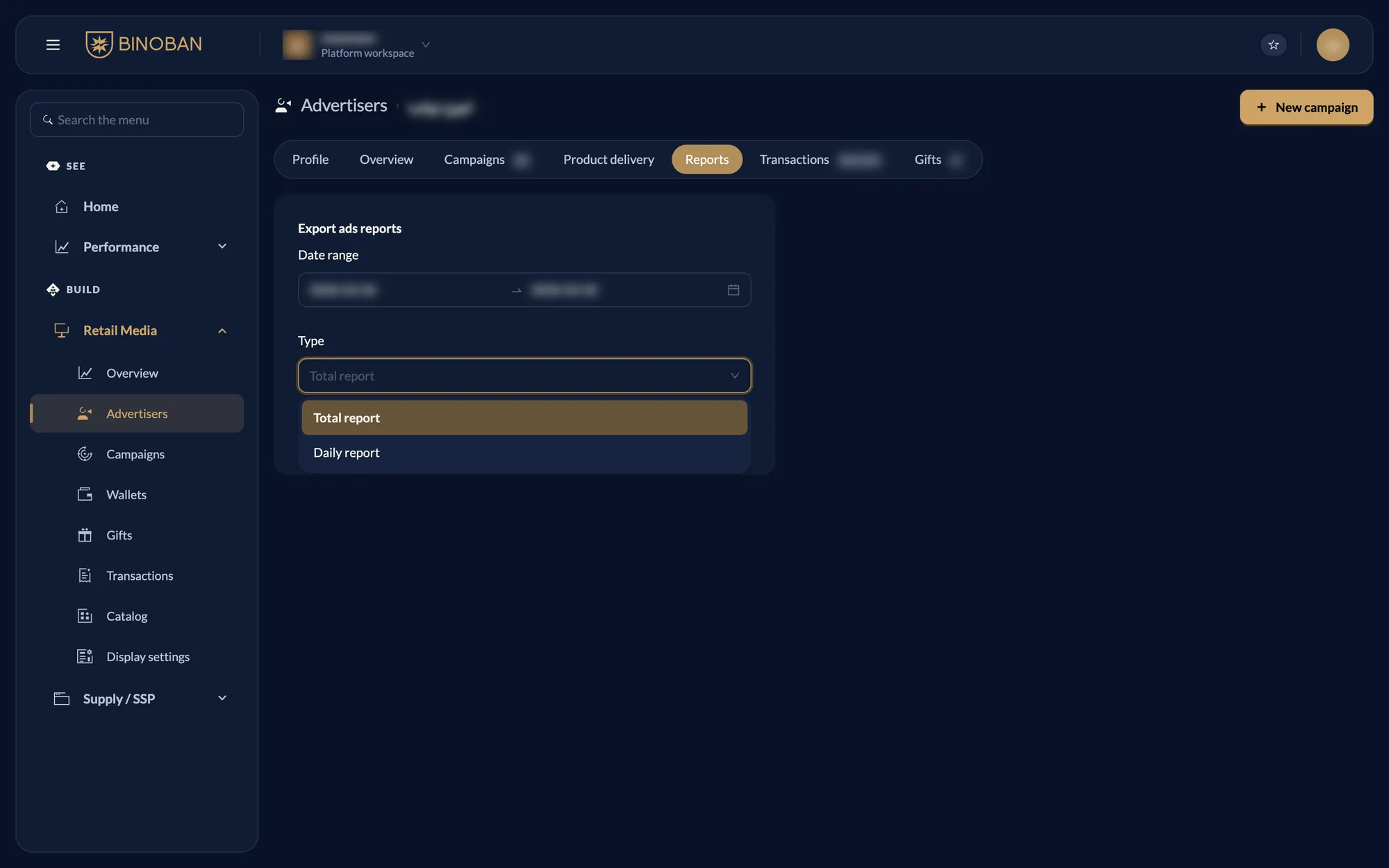
Downloads this advertiser's ads report as a file. Choose the date range, which starts as the last 30 days, then Total report or Daily report, and press Download Reports.
Transactions tab
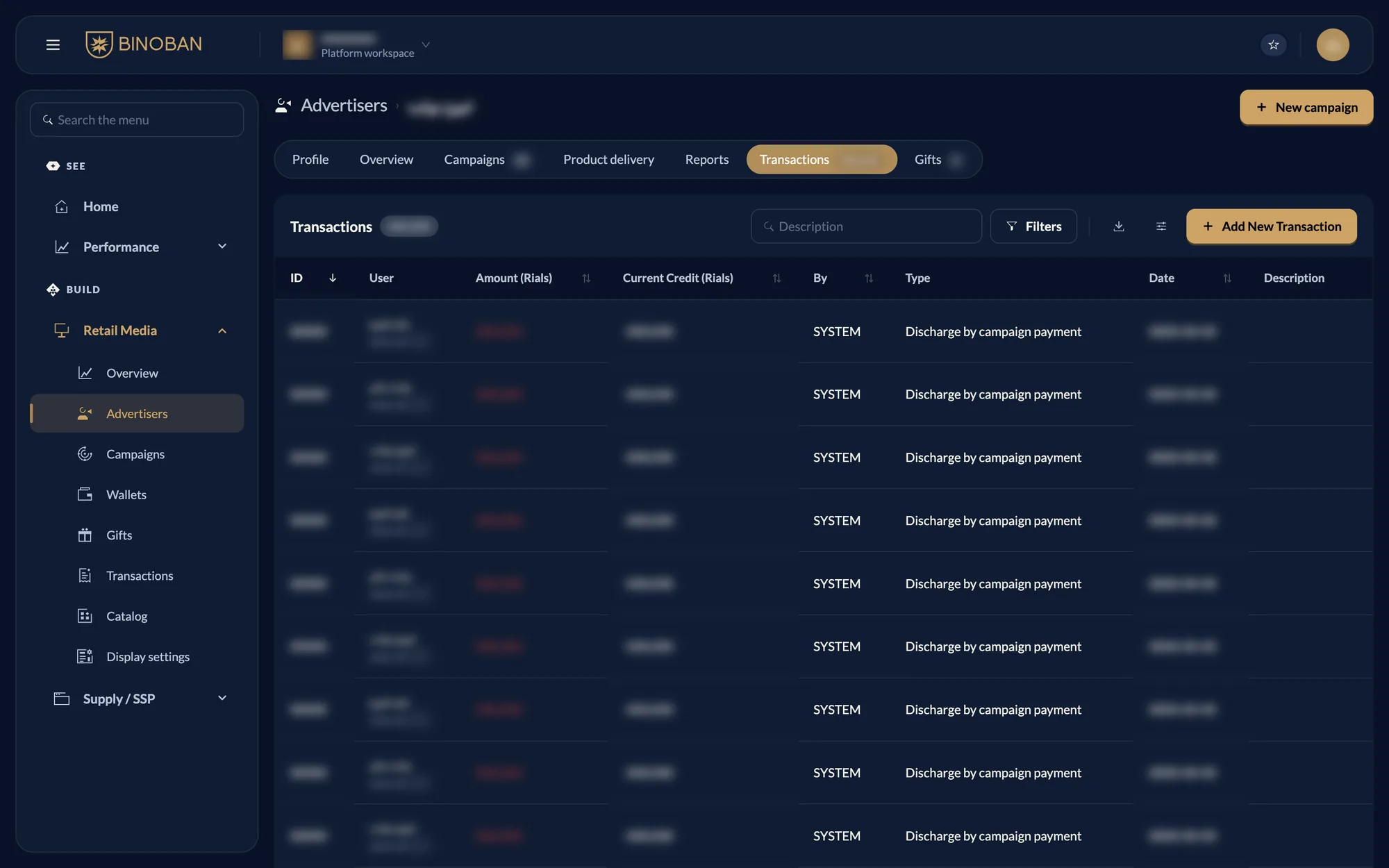
Lists only this advertiser's wallet transactions, with their own search and Filters. Add New Transaction opens the form already set to this advertiser.
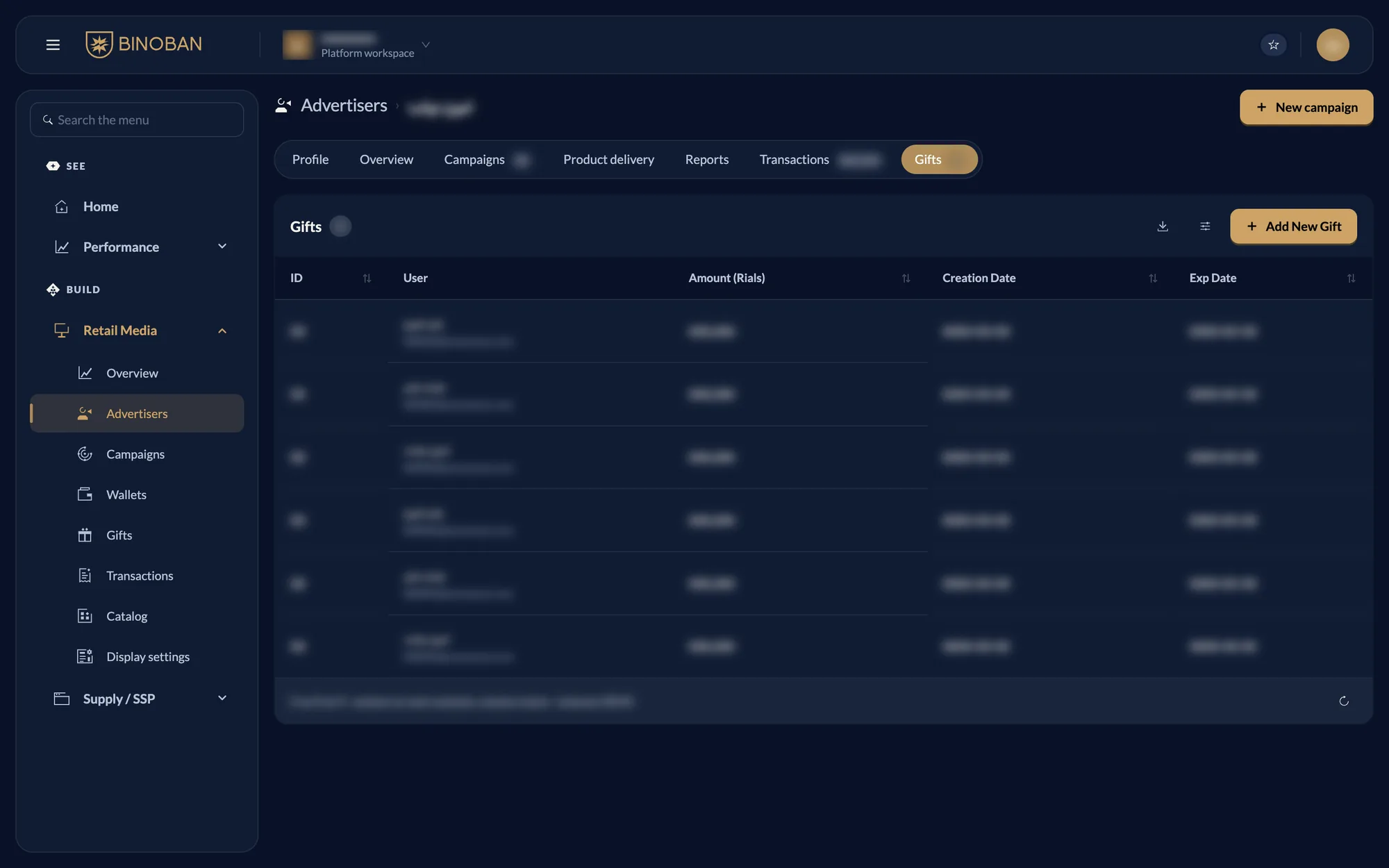
Gifts tab
Lists only this advertiser's gift credit, with its amount, creation date and expiry date. Add New Gift opens the form already set to this advertiser.
Campaigns
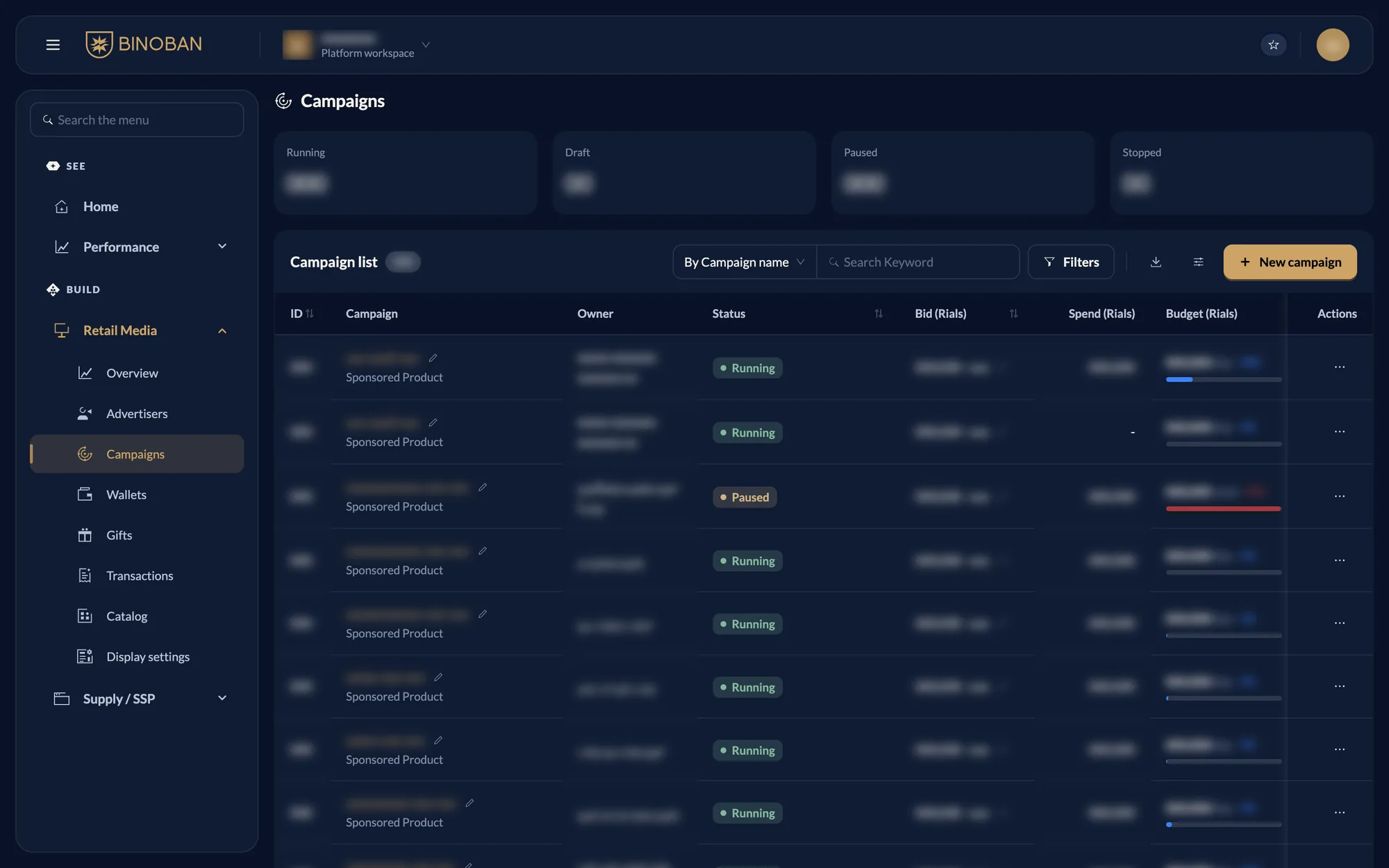
Every campaign, with a count of Running, Draft, Paused and Stopped at the top.
- Pencil icons beside the name, bid and budget edit that value right in the list.
- Budget shows the daily or total budget, and how much of it is used.
- Actions holds the row's menu. See Pause, resume or stop a campaign for what each action does and when it appears.
- Download exports the list as it is filtered.
The campaign page
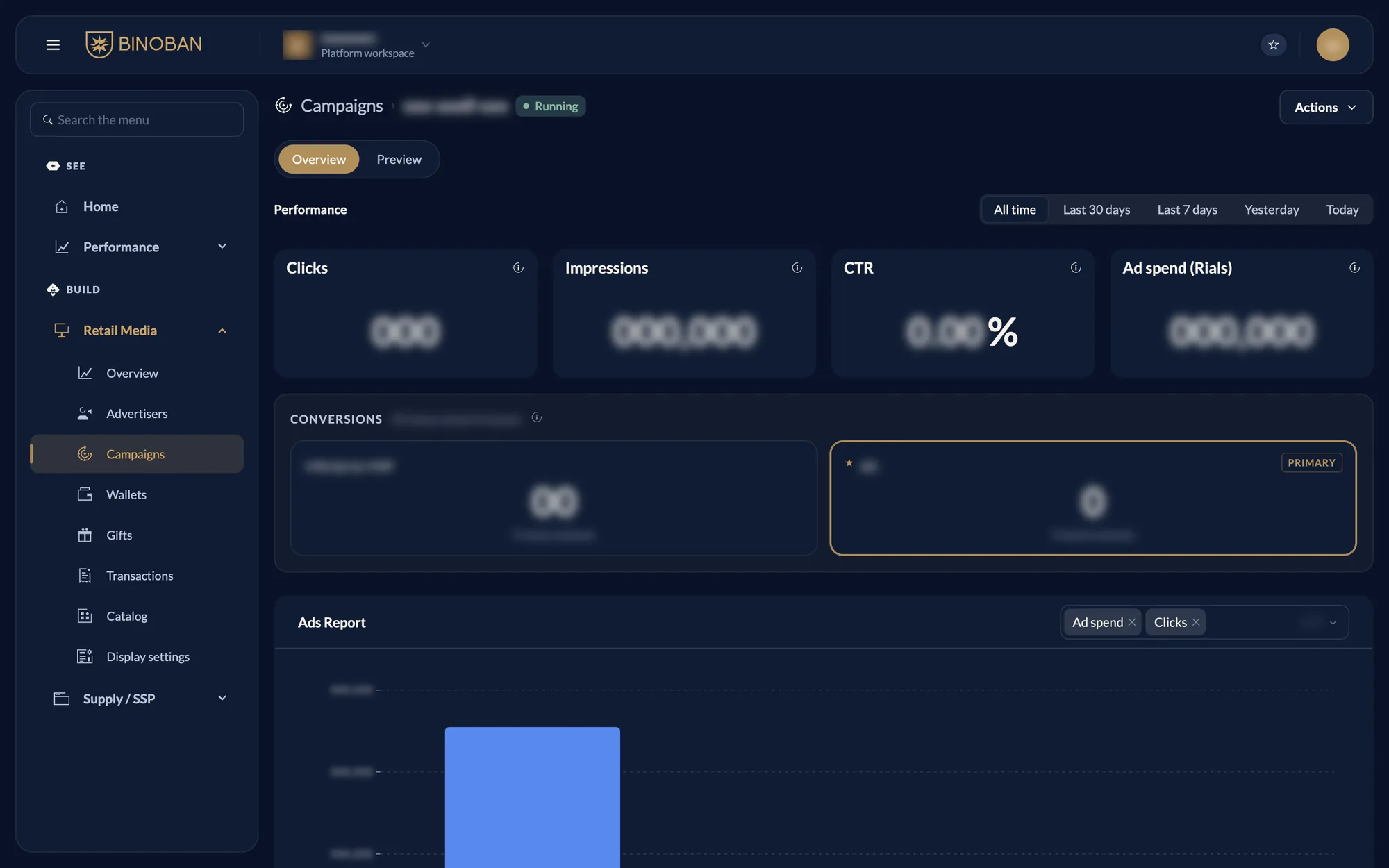
Press a campaign's name to open its page.
- Overview: performance for a period, conversions by level, and the Ads Report.
- Preview: what the campaign is set to.
- Actions: the same actions as the list, at the top right.
Wallets
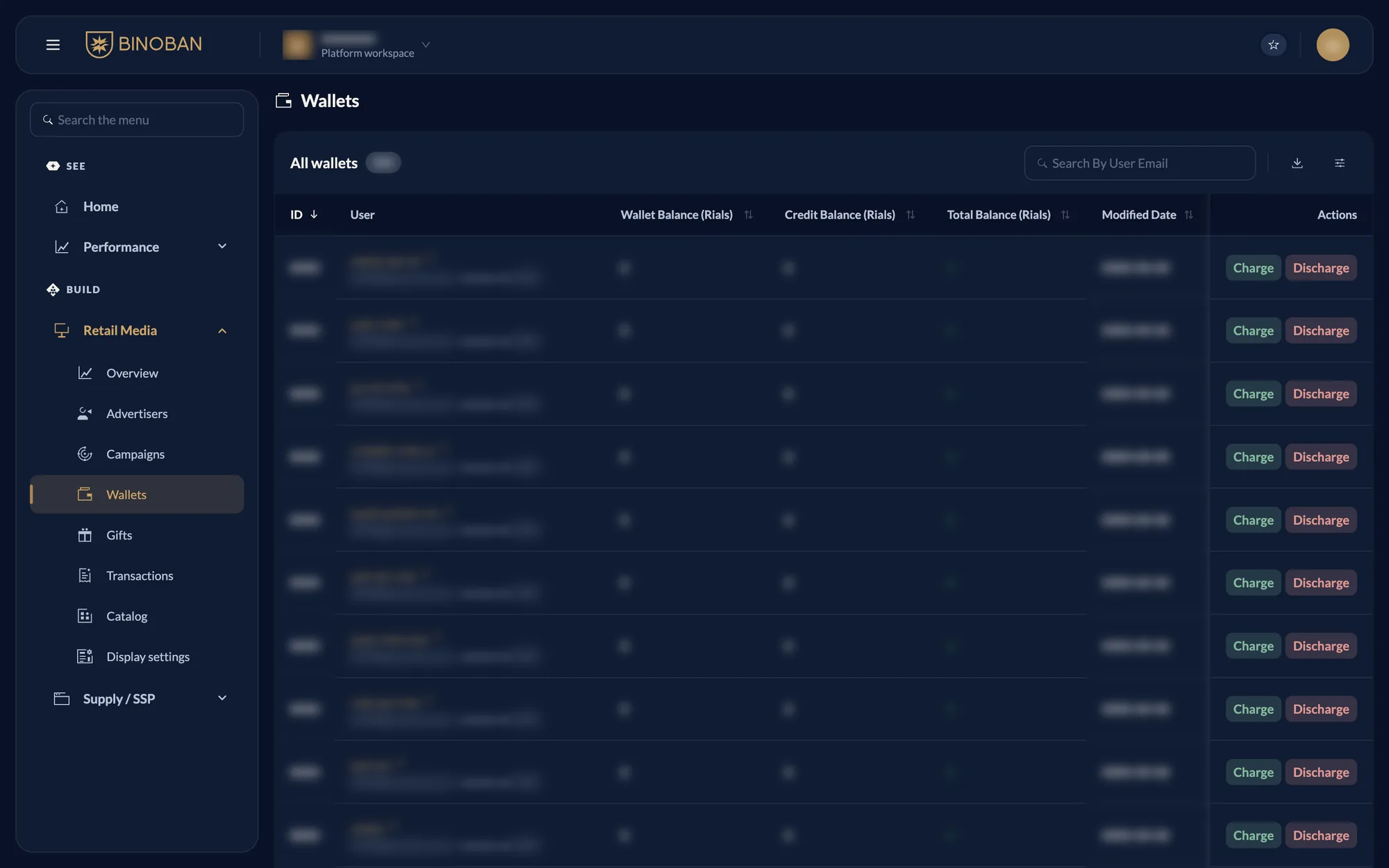
Every user's balance, and the quickest place to charge or discharge one.
- Search By User Email finds one wallet.
- The name links to that advertiser's page.
- Charge and Discharge on each row open the transaction form for that user.
Total Balance is the Wallet balance plus the Credit Balance, which is gift credit.
Gifts
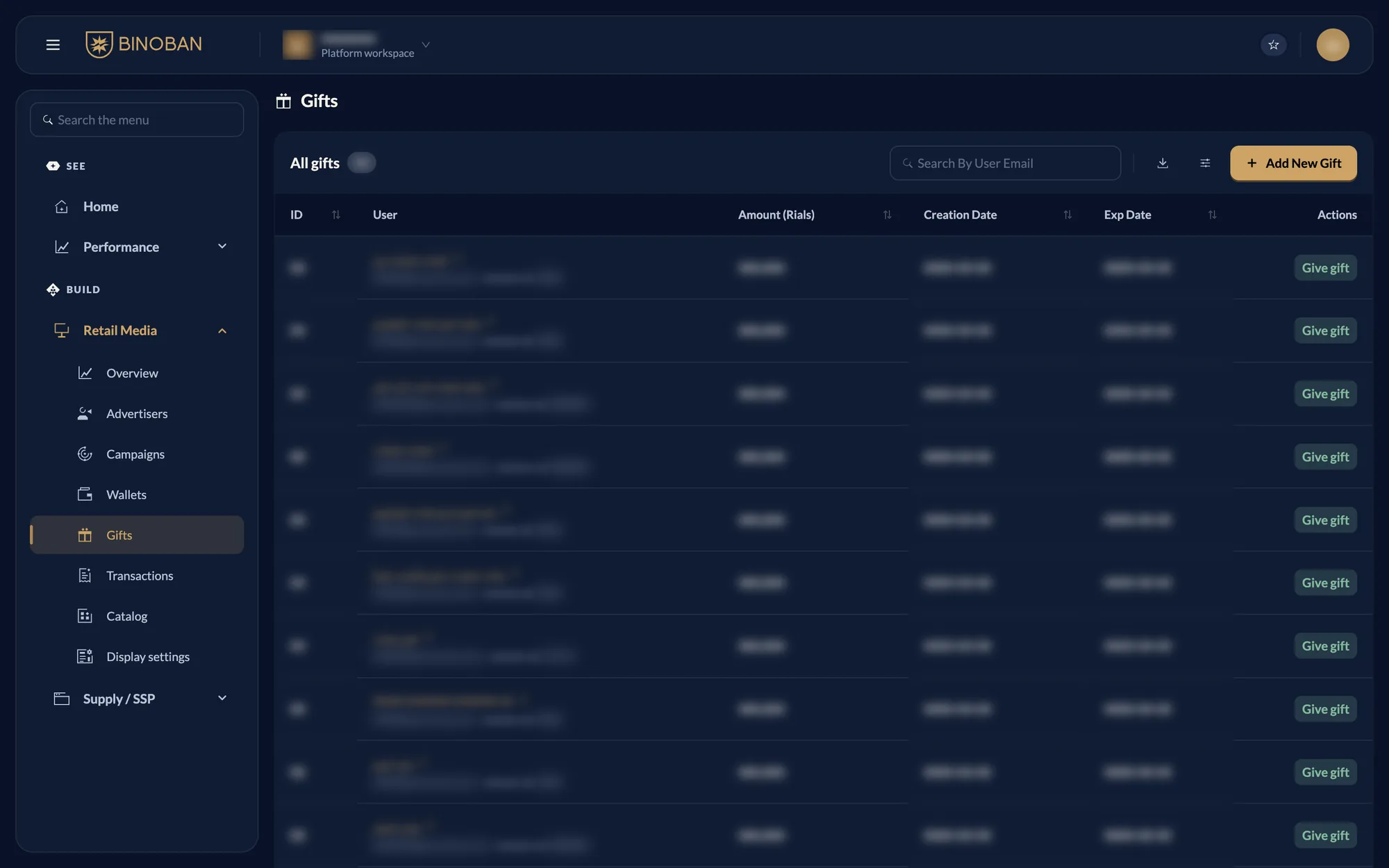
The gift credit given to users, with its amount and expiry date.
- Give gift on a row gives more to that same user.
- Add New Gift starts with no user picked.
Transactions
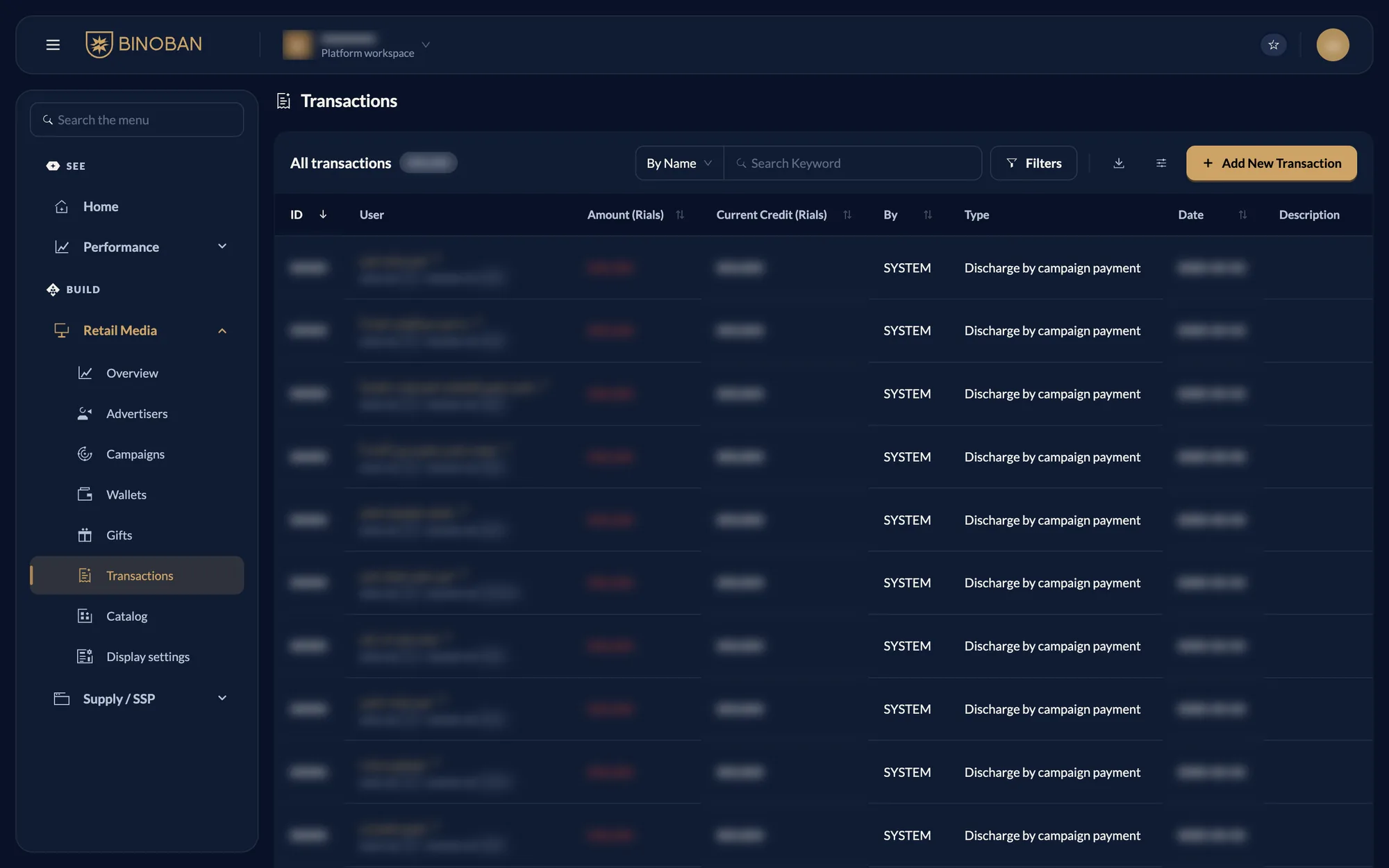
The full record of money moving in and out of wallets.
| Type | Direction | Meaning |
|---|---|---|
| Charge by admin | Money in | A team member added money |
| Charge by gift | Money in | Gift credit was added |
| Charge by banking transaction | Money in | Money came from a bank payment |
| Discharge by admin | Money out | A team member removed money |
| Discharge by campaign payment | Money out | A campaign spent the money |
| Discharge by payment request | Money out | Money left through a payment request |
The By column shows who did it. SYSTEM means it happened automatically, such as campaign
spend.
Catalog
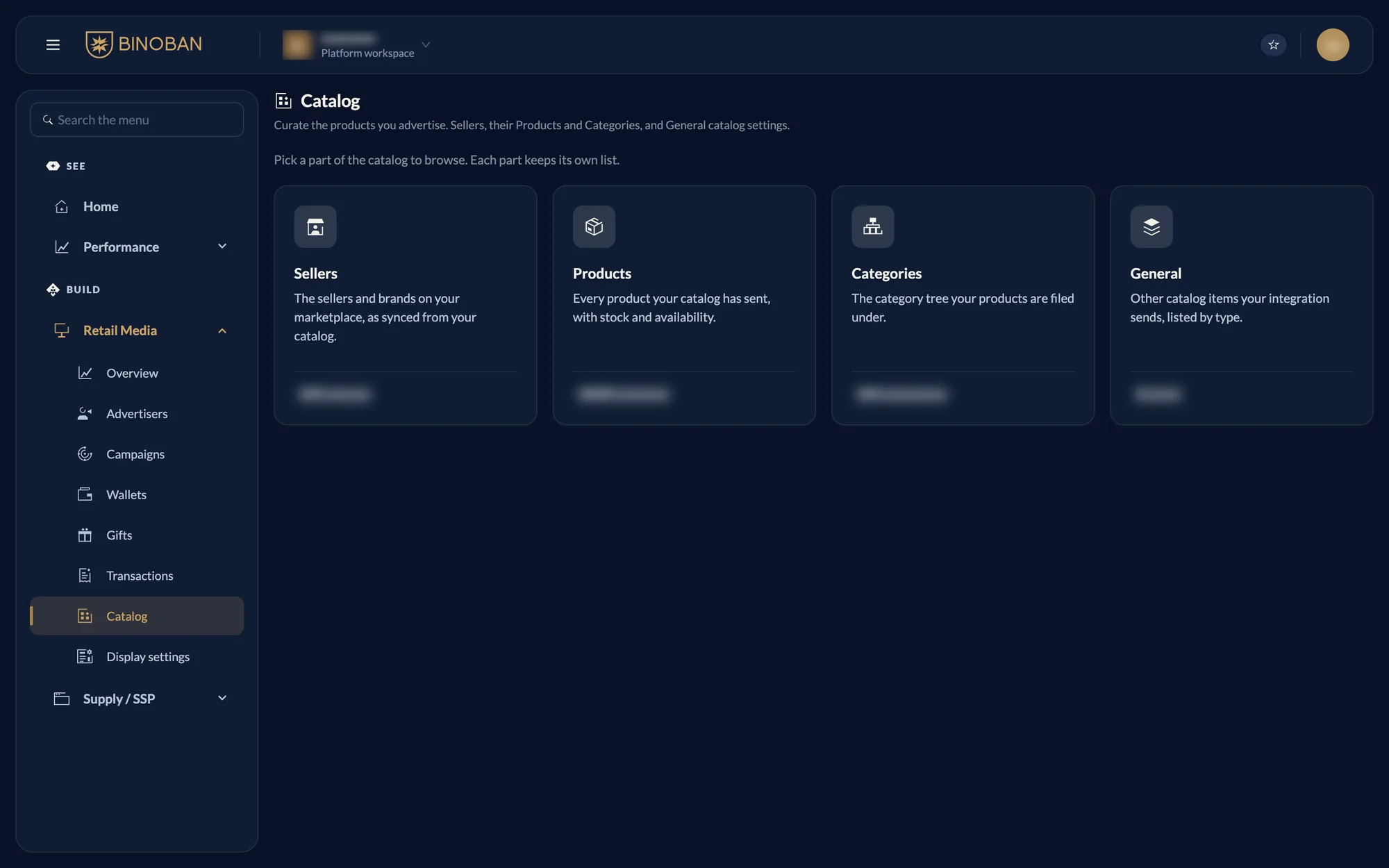
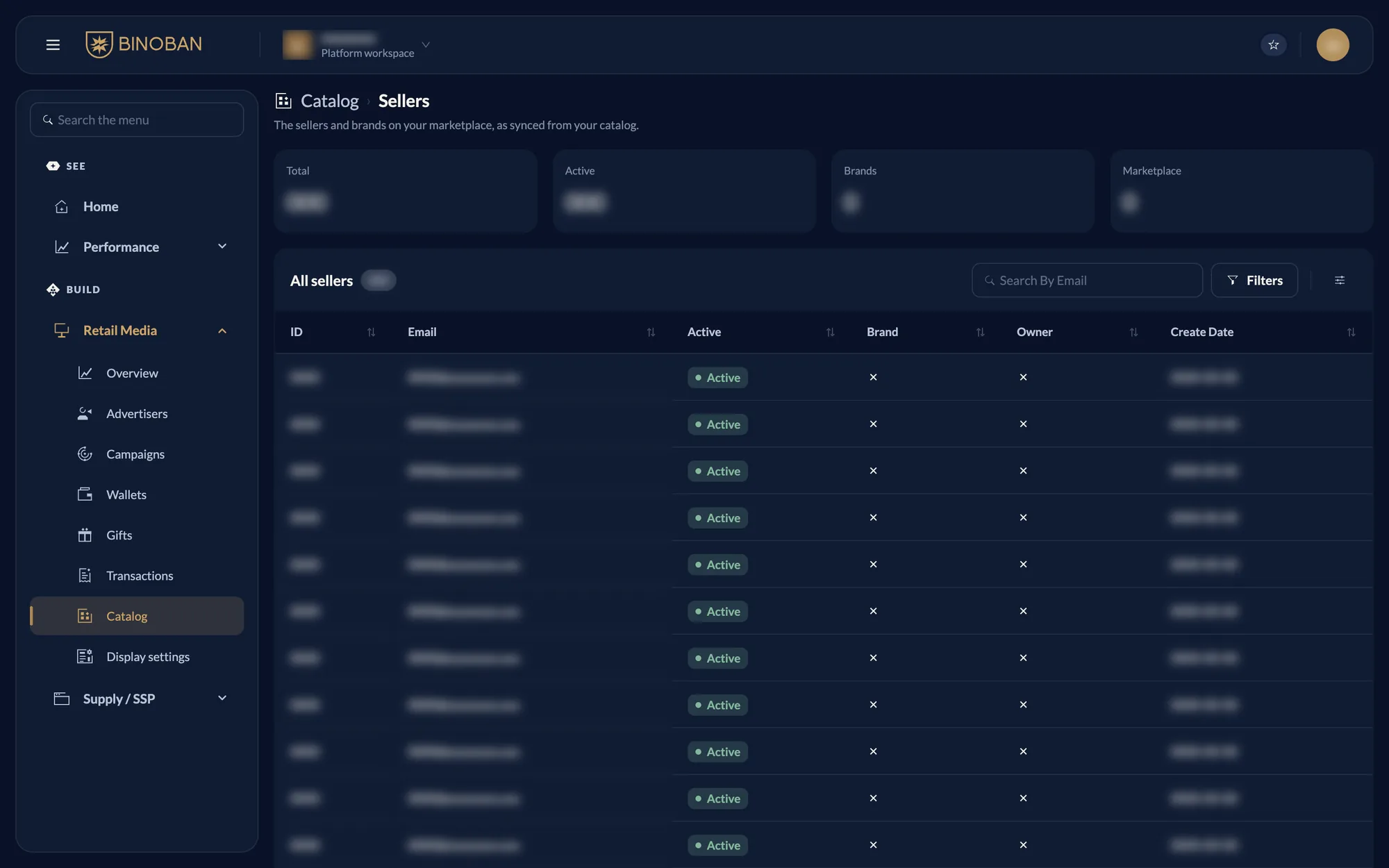
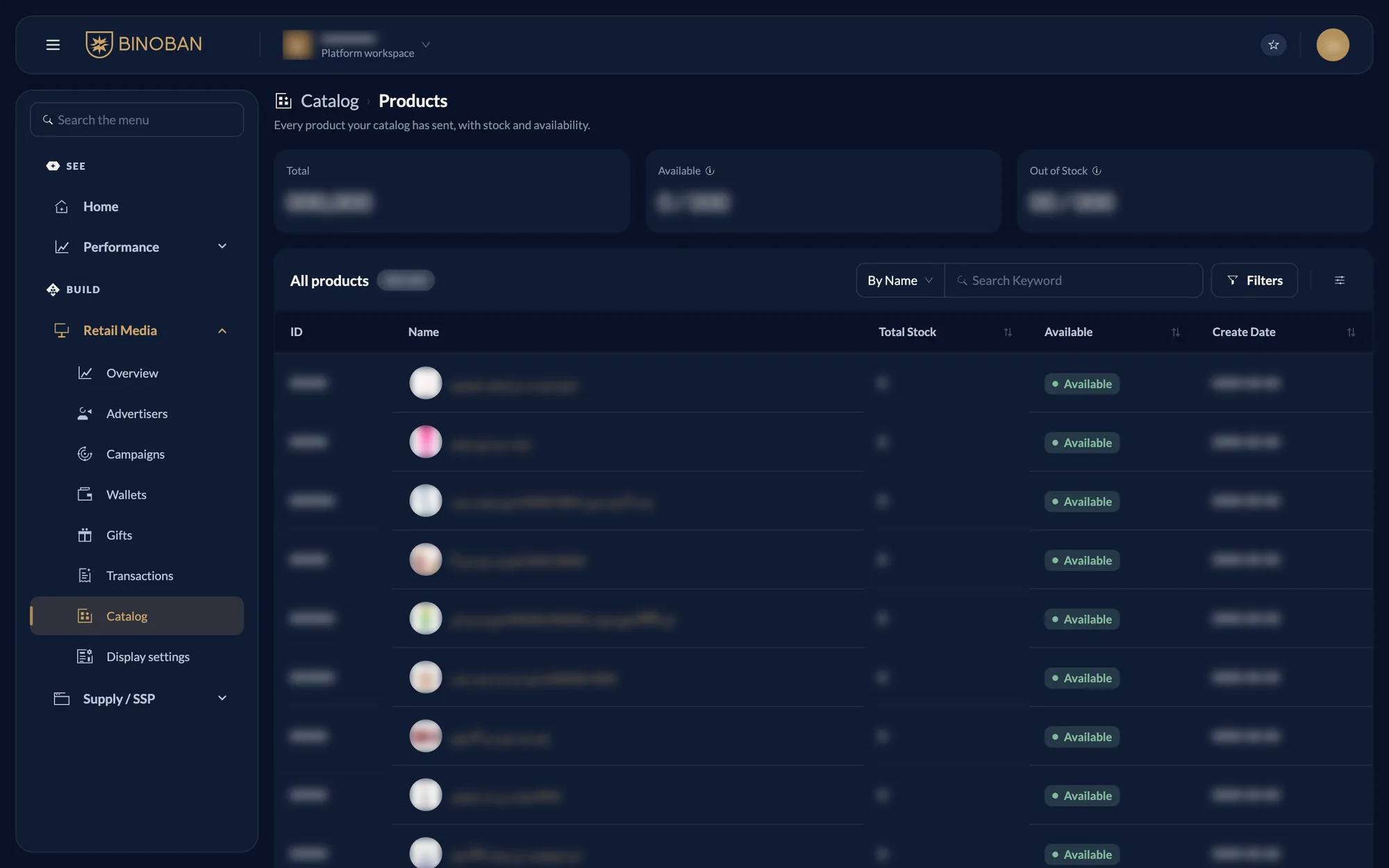
What your catalog integration has sent: the sellers, products and categories synced from your catalog through the Catalog API. It opens on a choice of four parts, and each keeps its own list: Sellers, Products, Categories and General.
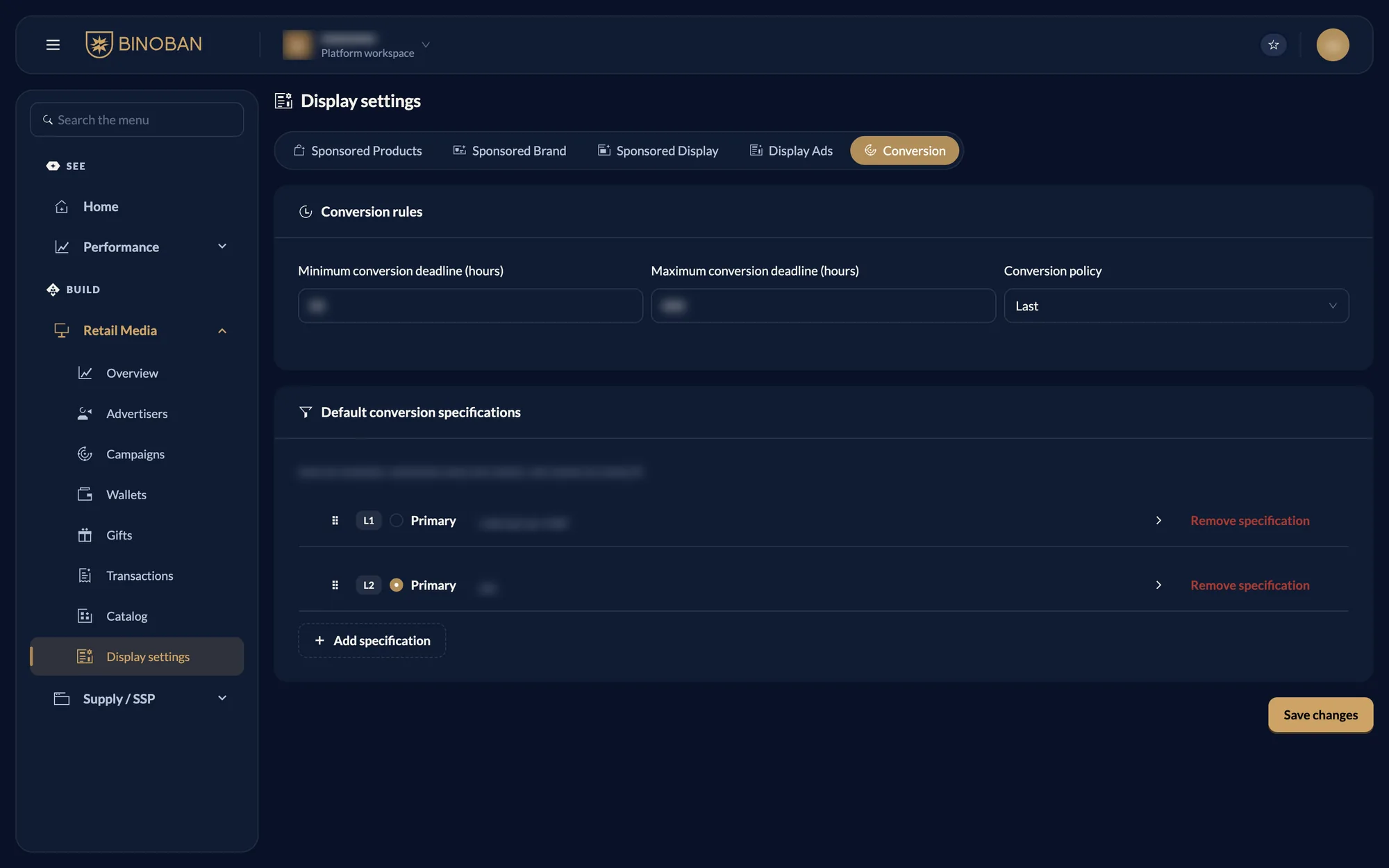
Display settings
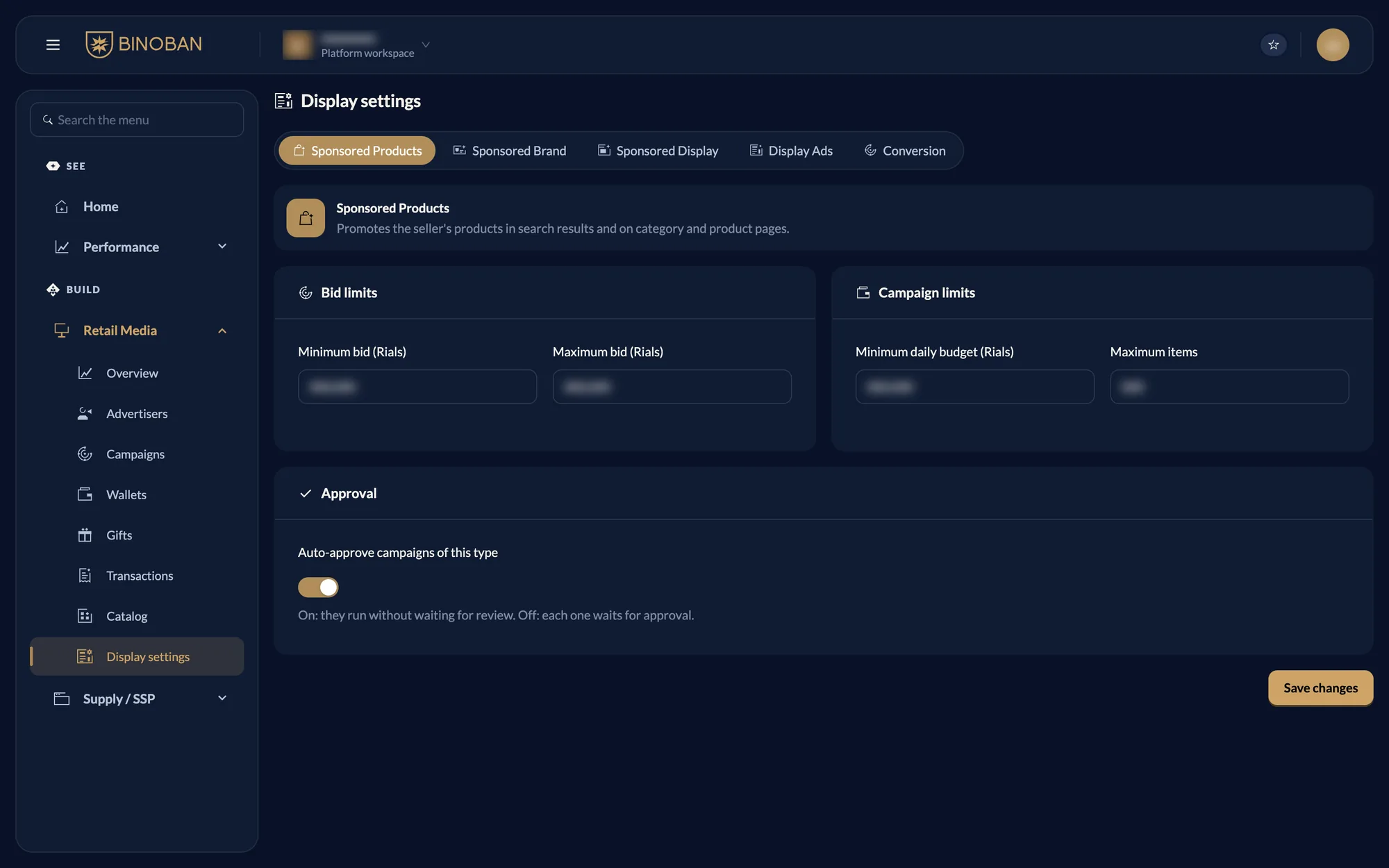
The rules for every campaign on the platform, so a change here affects everyone.
Each campaign type has its own tab, with:
- Bid limits: the minimum and maximum bid.
- Campaign limits: the minimum daily budget and, where it applies, the maximum items.
- Approval: when auto-approve is on, campaigns of this type run without waiting for review.
The Conversion tab sets the minimum and maximum conversion deadline in hours, the conversion policy and the default conversion specifications. Drag a specification to reorder it: the first one is level 1.