Deploy the WordPress plugin
activeThe Binoban plugin is one WordPress zip. Upload it, activate it, and its setup wizard connects it to Binoban, confirms how people are identified, and switches it on. It takes about 10 minutes and needs no developer, no theme edit and no code snippet. For what the plugin does once installed, see How the WordPress plugin works.
Before you start
| You need | Why |
|---|---|
| WordPress 6.0 or later on PHP 7.4 or later (Tools → Site Health → Info) | The plugin is built for these versions |
| An Administrator account | To install the plugin and open its admin pages |
| WooCommerce 8.0 or later, if the site is a store | Optional. Without it the store events are greyed out and everything else works |
| HTTPS from the web server to the Binoban API host, with a trusted certificate | WordPress sends server events to Binoban directly from the server |
From Binoban: the API host, the Web SDK URL, and two sources, each with a sourceIdentifier and apiKey | A Web source for the visitor's browser and a Server source for WordPress itself. Both are under Data → Data Sources in your Binoban workspace |
| The WP Consent API plugin, if tracking must wait for consent | The plugin reads consent through it, so it works with any banner built on it |
Binoban matches people by userId, anonymousId and device IDs out of the box.
To match guests and form leads by phone or email, ask your Binoban team to add
phone and email to your workspace's
identity strategy before you go live.
Install
-
Upload the plugin. Plugins → Add New → Upload Plugin → choose
binoban-for-wordpress-<version>.zip→ Install Now → Activate. The plugin adds a Binoban menu and opens its setup wizard. Nothing is sent to Binoban until step 5. -
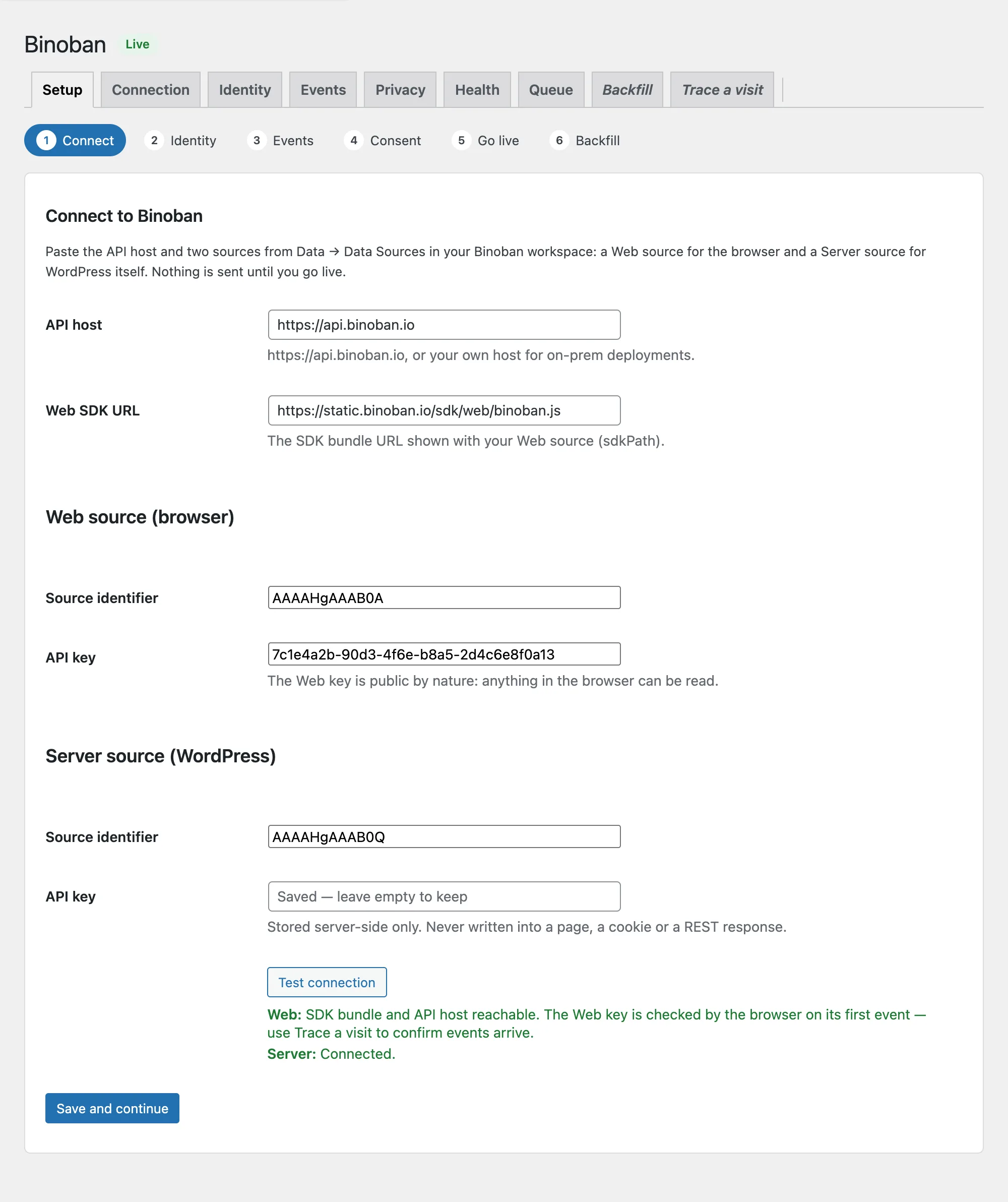
Connect. Enter the API host, the Web SDK URL, and the source identifier and API key of both sources, then press Test connection:
- Server must say Connected. The test sends one
connection_testedevent to the Server source. - Web must say SDK bundle and API host reachable. A Web key can only be checked by a browser, so its first real event is the check (step 5).
Press Save and continue. The Server key is stored on the server only; the field shows Saved afterwards and is never filled back in.
- Server must say Connected. The test sends one
-
Identity. Press Scan now. The plugin looks through the user table for phone numbers, emails and names, and lists every field it found with how many users have it. Untick any field that isn't a real identifier, set the default country code used to write phone numbers as E.164, and choose the roles that are never tracked (Administrator and Shop manager by default). Tick the identity-strategy box once your Binoban team has confirmed phone and email matching. Press Save and continue.
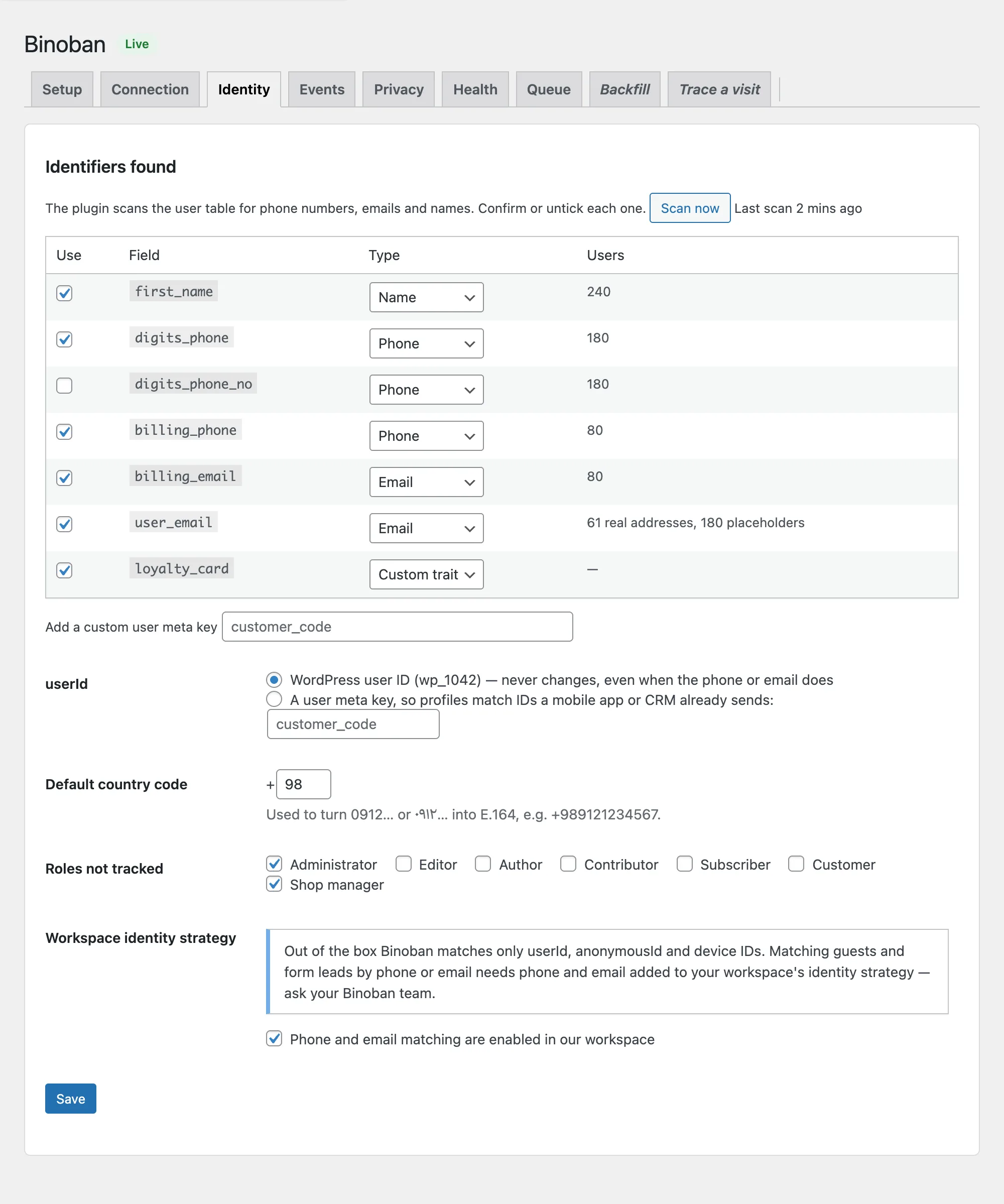
To match the IDs a mobile app or CRM already sends, choose A user meta key under userId and type its name, for example a customer code. To send another user field as a trait, type its meta key under Add a custom user meta key.
-
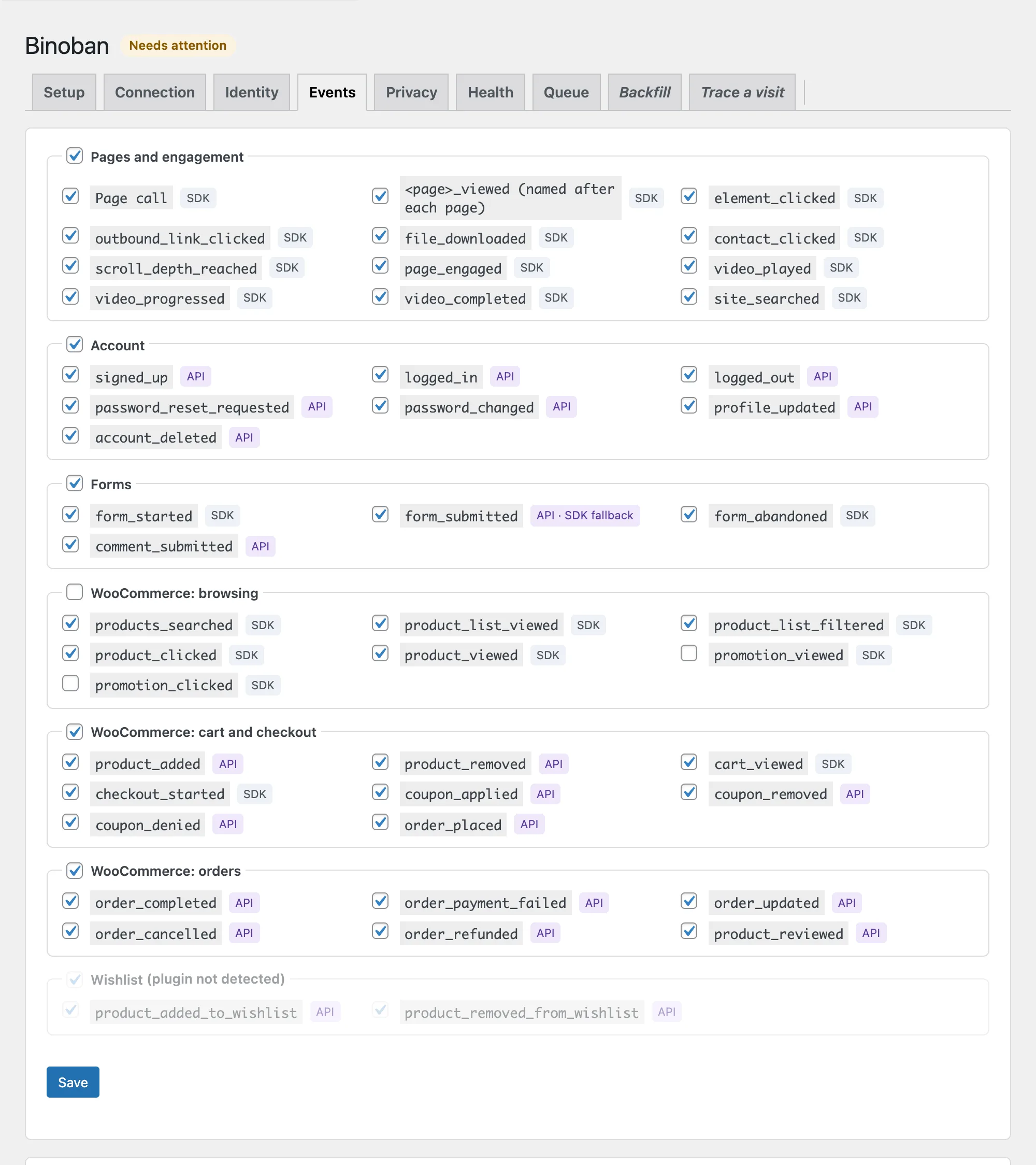
Events. Every group is on by default. Each event is labelled SDK (sent by the visitor's browser) or API (sent by WordPress). Groups for plugins that aren't active are greyed out. Untick anything you don't want and press Save and continue.
Below the groups, the Page events table lists every kind of page on the site: the home page, each WordPress Page, each post type and template, every archive and the store pages, with the event it fires, such as
about_us_viewedorproduct_category_viewed. A Page whose slug isn't Latin is named after its template or its ID, so give it a readable name: type it in the Event name field. Untick a row to send only the page call for it. Press Save page events.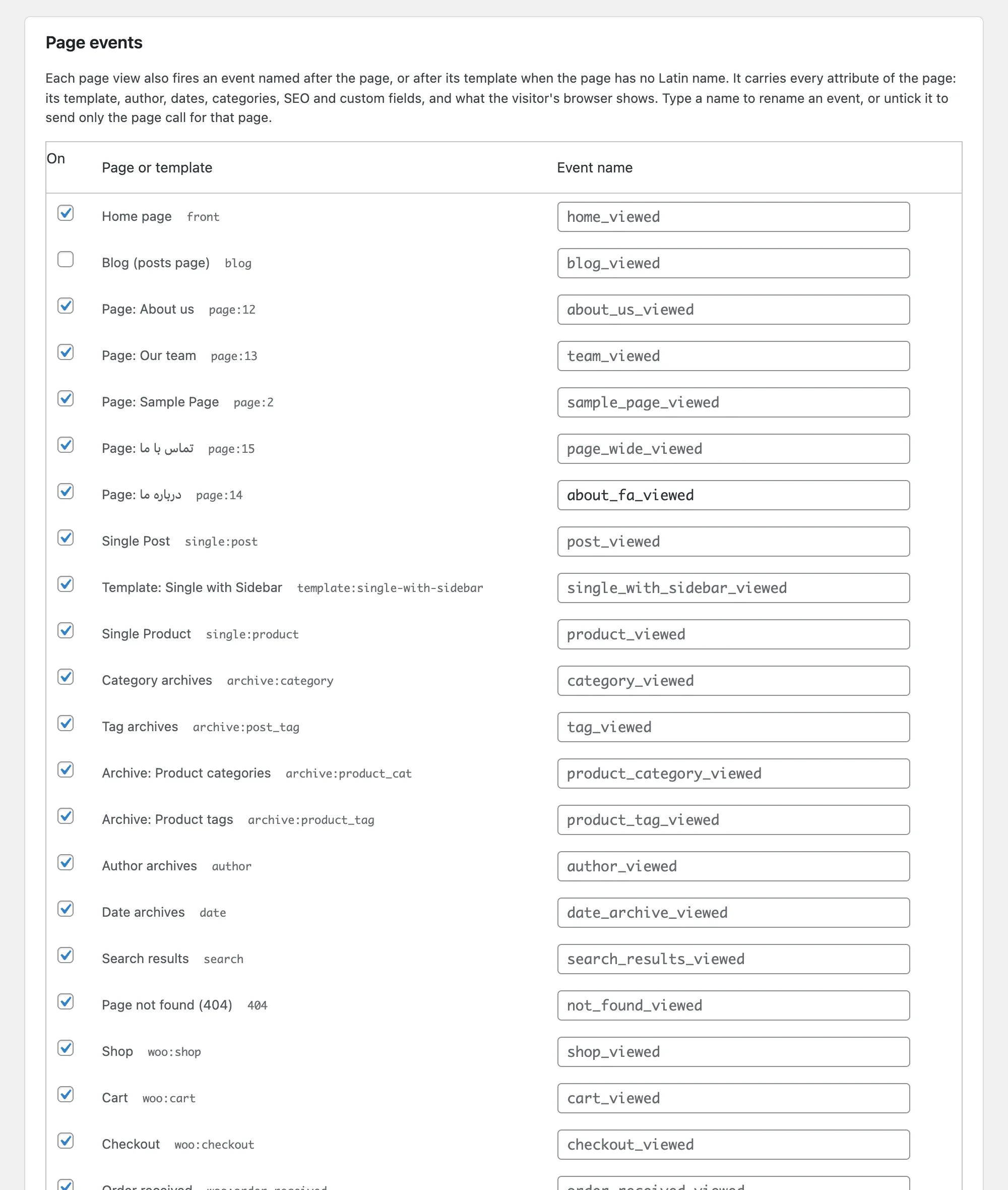
-
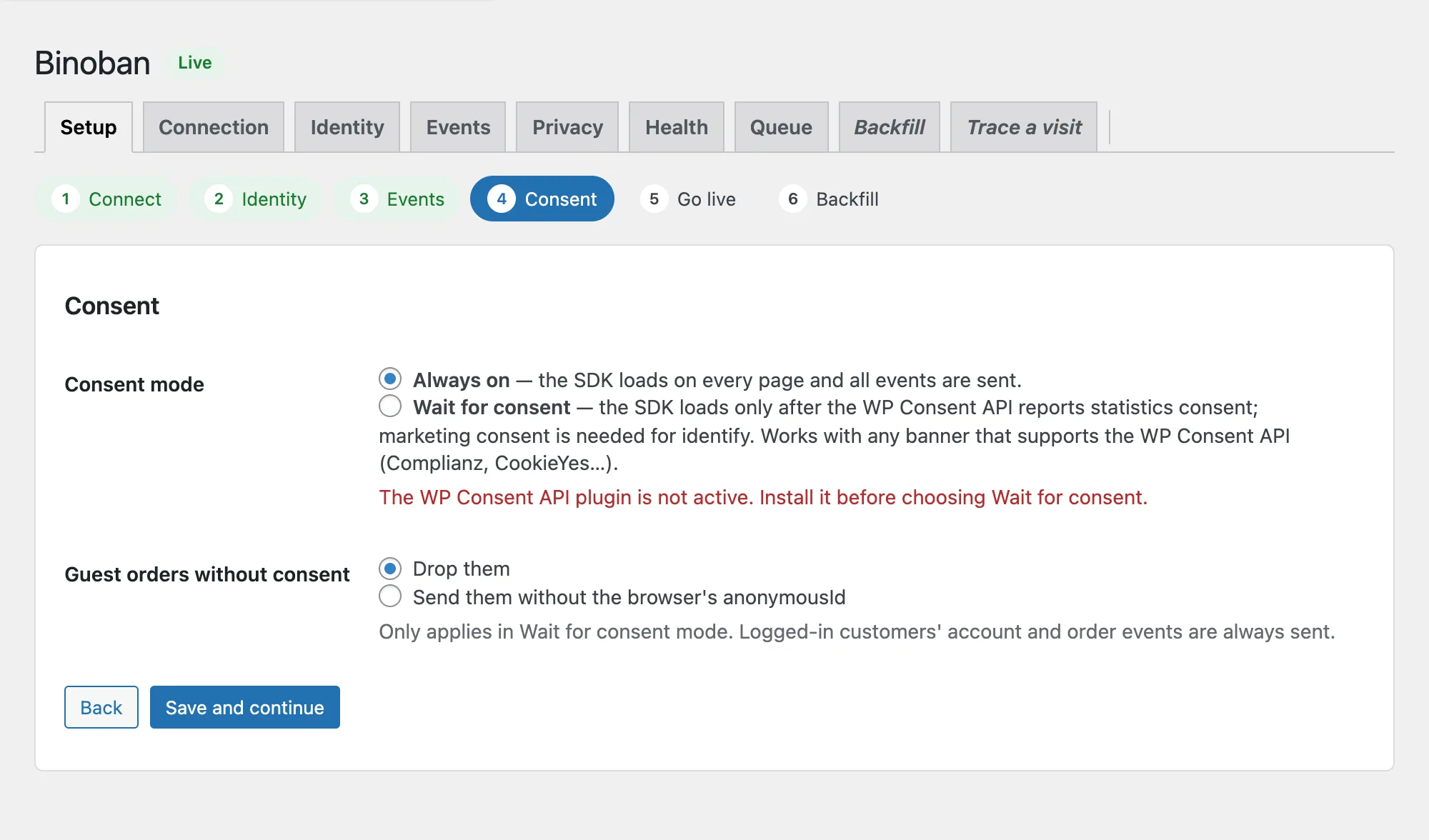
Consent. Choose Always on, or Wait for consent if the site has a consent banner that supports the WP Consent API. Press Save and continue.
-
Go live. Press Switch on. Binoban starts receiving events from this site. Administrators aren't tracked, so press Open the site in trace mode to watch your own visit arrive (see Check it works).
-
Optional: backfill. Open the Backfill tab, tick Existing users and Past orders, and press Start backfill. Users become Identify calls and processing or completed orders become
order_completedevents, each with its original date. Progress shows on the tab, and you can pause and resume.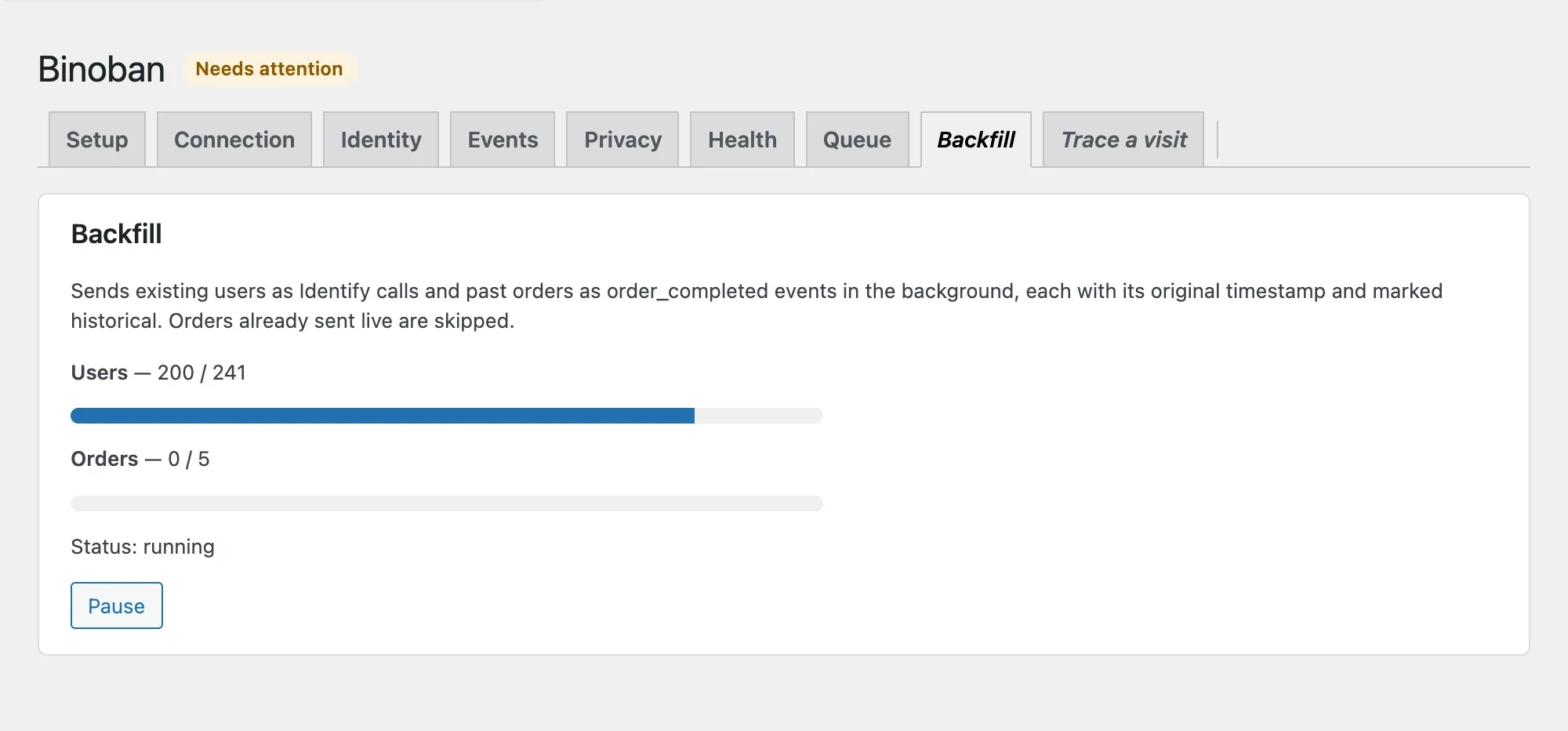
The wizard can be run again at any time from the Setup tab. Every value it sets also has its own tab.
Check it works
On the Trace a visit tab, press Open the site in trace mode. A new tab
opens the site with a bnb_trace link. Browse a few pages, open a product and
add it to the cart, then come back:
- Browser events (traced browser) lists what your browser sent:
page, the page events such asshop_viewedandproduct_viewed,element_clicked,cart_viewedand so on, each with the page it came from. - Server events lists what WordPress queued. Your
product_addedis highlighted, and turns sent (200) within a minute. - In Binoban, the visit arrives as an anonymous profile. It joins the
person's profile, with the
userIdwp_<user id>, when they sign up or log in.
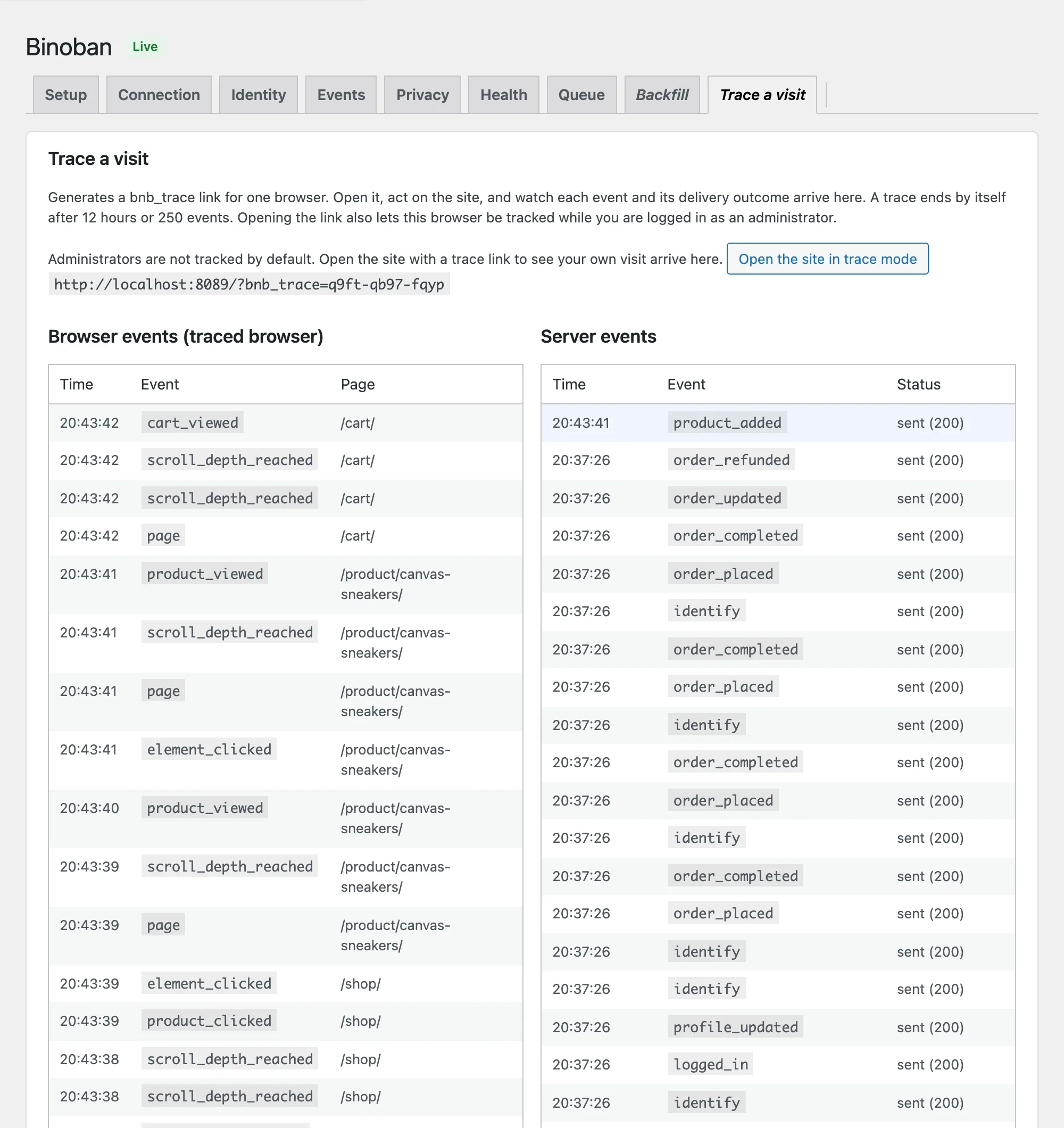
A trace ends by itself after 12 hours or 250 events. While it lasts, that one browser is tracked even though you are logged in as an administrator.
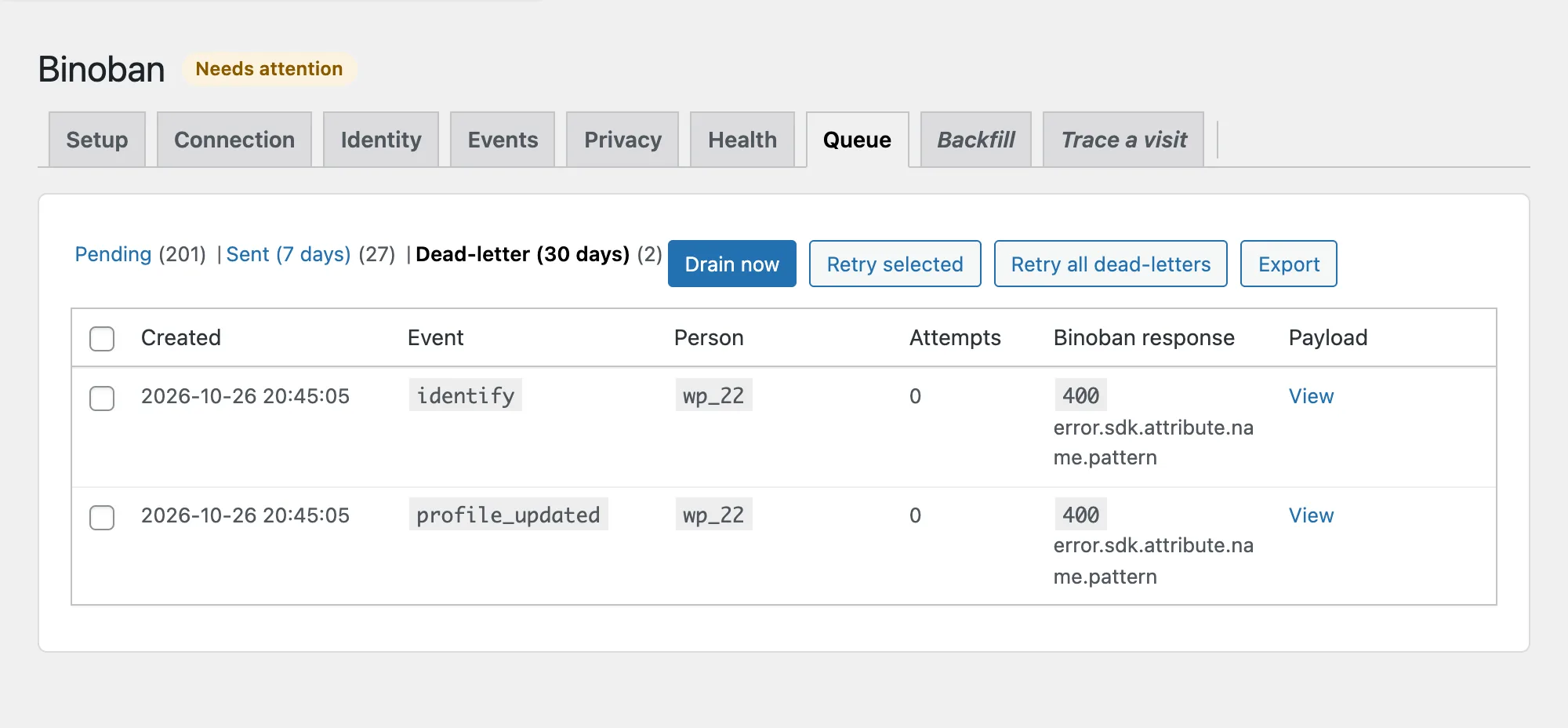
The Queue tab lists every server event: Pending (waiting to be sent or retried), Sent (kept 7 days) and Dead-letter (rejected, kept 30 days). Press View on a row to see exactly what was sent. Drain now sends what is due at once, and Export downloads the list as JSON.
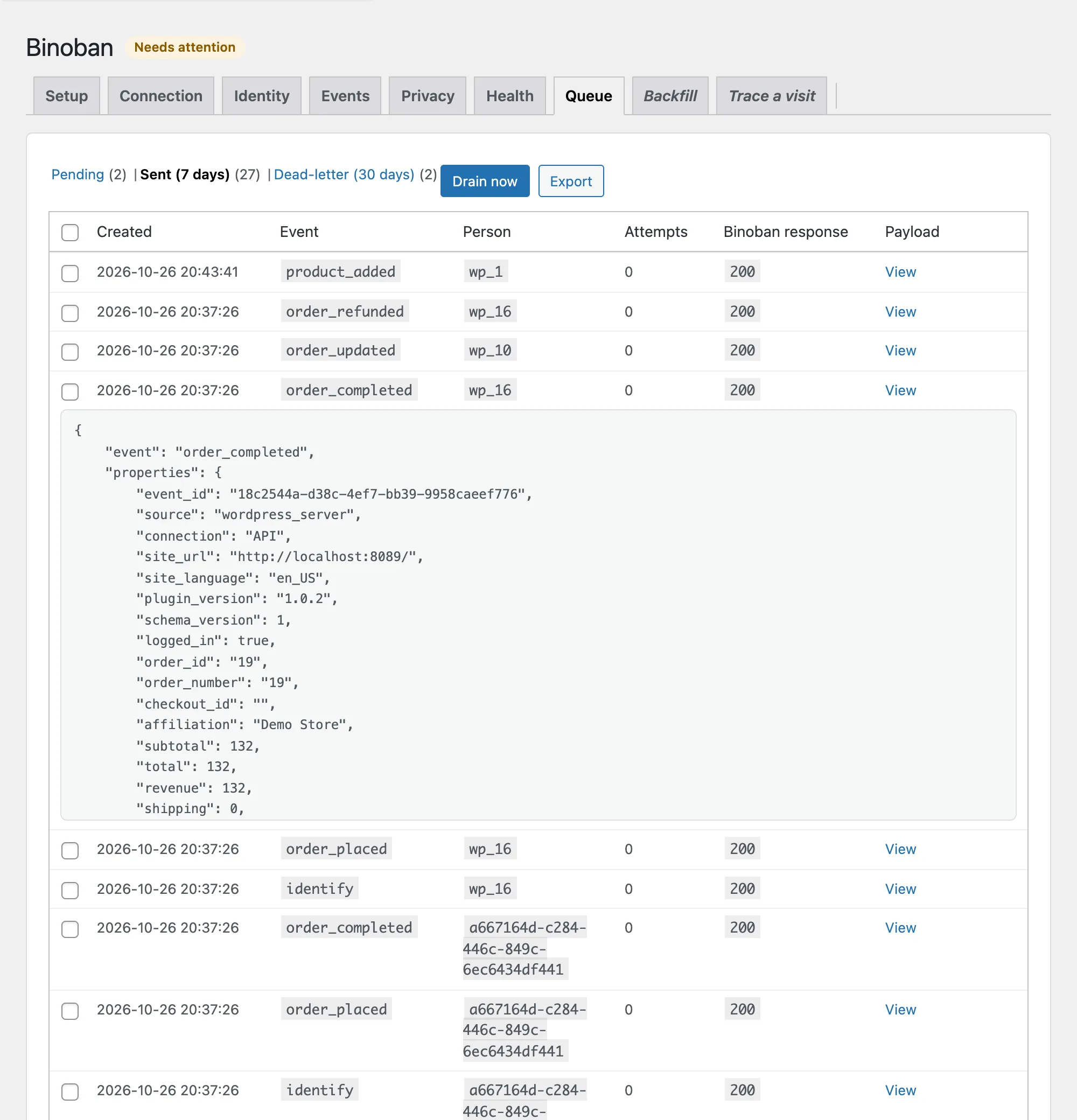
A dead-letter shows Binoban's error code. Fix the cause, tick the row and press Retry selected.
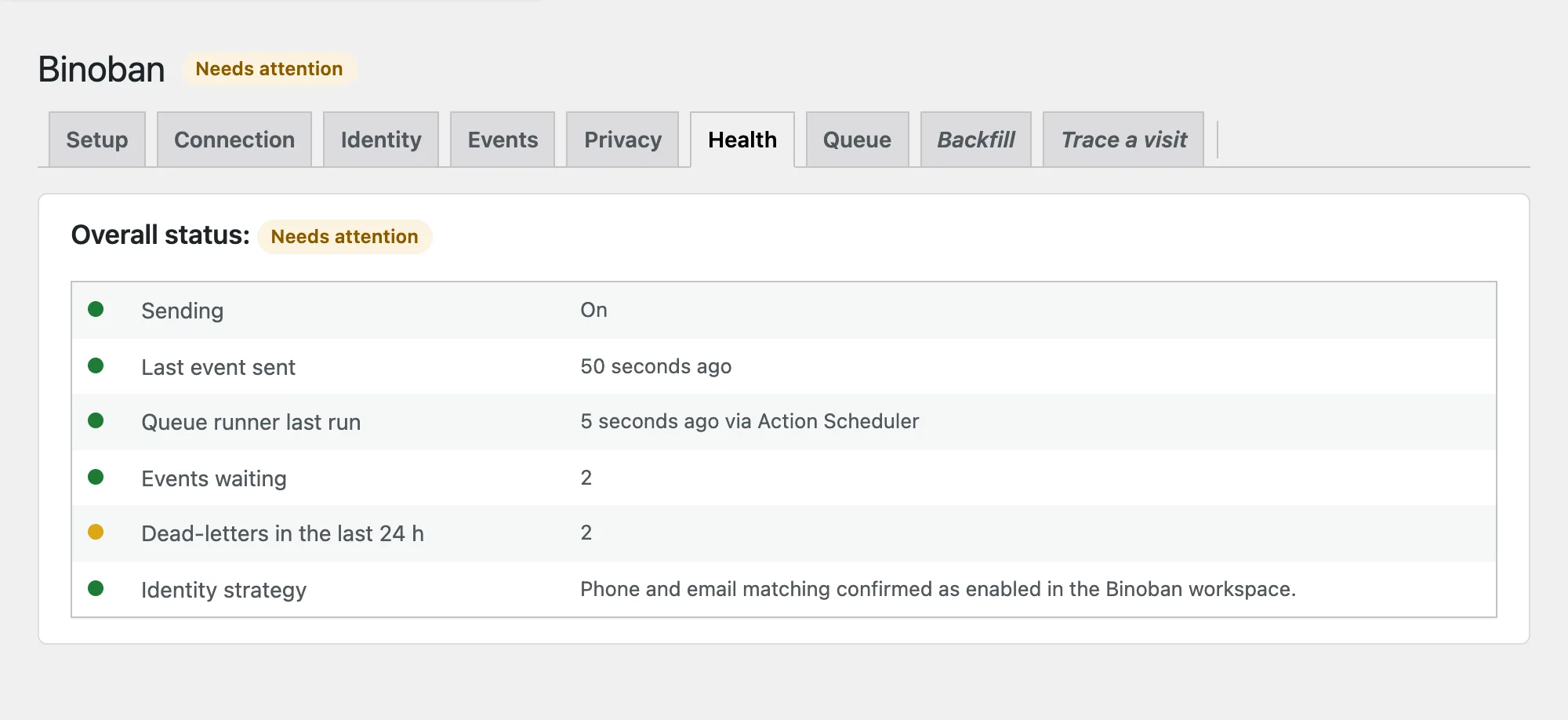
The Health tab shows whether sending is on, when the last event was sent, when the queue runner last ran, how many events are waiting, the dead-letters of the last 24 hours, the page cache it found, and the identity-strategy check.
If it doesn't work
Start with the Health tab. Anything that blocks sending is marked in red.
| Symptom | Likely cause | Fix |
|---|---|---|
| Test connection: Server Wrong API key (401) or Unknown source (404) | The Server source identifier or key, or the API host, is wrong | Copy them again from Data → Data Sources, then test again |
| Test connection: Web does not serve the SDK bundle | The Web SDK URL is wrong | Use the SDK URL shown with your Web source |
| Test connection: Web API host has no Web SDK endpoint | The API host is wrong | Use the API host shown with your sources |
| No browser events from your own visits | Administrators and Shop managers aren't tracked | Use Trace a visit, or test from a private window |
| No browser events from anyone | Tracking is off, the Web SDK URL is empty, or Wait for consent is on and no one has consented | Connection tab: tick Tracking; check the SDK URL; check the consent banner |
Browser console shows a CORS error for bobcs.wasm or /api/tracker/sdk/web | The SDK couldn't load its checksum module from the SDK host, so Binoban rejected the batch | Check the Web SDK URL is the one for your deployment. If it is, send the console lines to your Binoban team |
| Banner Binoban sending is paused | Binoban refused the Server key or source (401/404) | Correct the value on the Connection tab, then Test connection; sending resumes and nothing queued is lost |
| Health: events have waited more than 15 minutes | WP-Cron only runs when someone visits the site | Add a server cron job that requests wp-cron.php every minute |
| Queue row Dead-letter | Binoban rejected that event | Read the error on the row, fix the cause, press Retry selected |
| Health: New identifier fields found | A login plugin started storing phone numbers in a new field | Identity tab: tick or untick the new field, then Save |
Update
Download the newer binoban-for-wordpress-<version>.zip and upload it the same
way: Plugins → Add New → Upload Plugin → Replace current with uploaded.
Settings, the queue and the backfill state are kept. The version installed is
on the Plugins screen and in every event's plugin_version.
Uninstall
Plugins → Deactivate → Delete. Deleting removes the plugin's settings, its queue table, its scheduled jobs and the flags it stored on orders. Data already sent to Binoban stays there.